How-to guides
Compress a PDF
How to make a PDF smaller with vivePDF, see what takes up the space, choose a compression profile and get a file small enough to e-mail.
To make a PDF smaller, open Tools › Compress, choose your file, pick a profile and click Compress. Pictures are resampled and unused font parts and leftover structure are cleaned out; the original file stays as it was.
- Open Tools › Compress and choose the PDF, or drag it onto the window.
- Look at What the file is made of: pictures, fonts and page content are shown separately, with the largest pictures listed.
- Pick a Profile. For e-mail, Strong is usually enough.
- Click Compress.
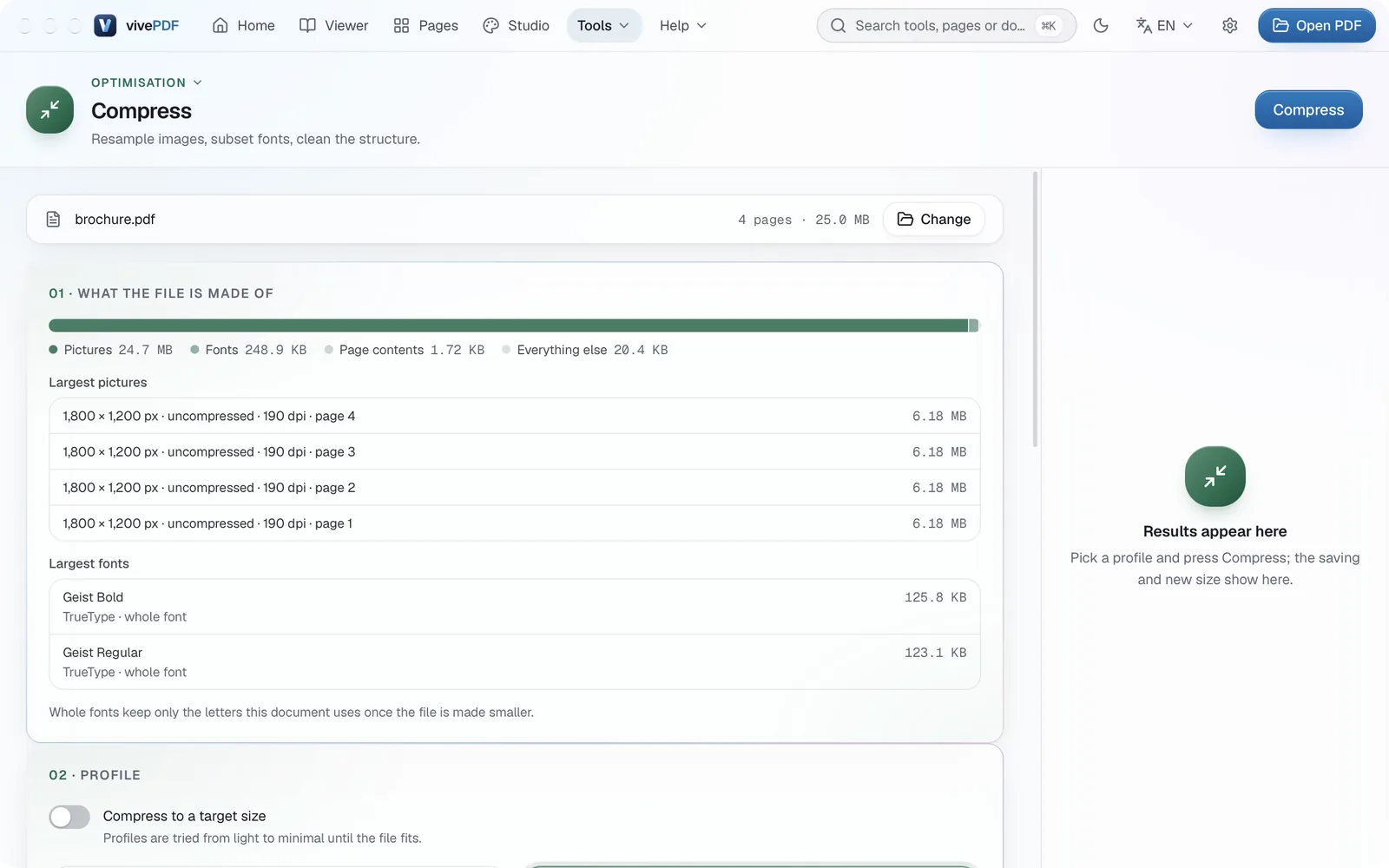
The profiles differ like this:
- Light: leaves pictures alone and only cleans the structure and fonts.
- Balanced: 150 dpi and 75% JPEG; invisible on screen.
- Strong: 100 dpi and 60% JPEG; ideal for e-mail.
- Extreme: 72 dpi and 40% JPEG; the smallest file, at low quality.
- Custom: you set the resolution and quality yourself.
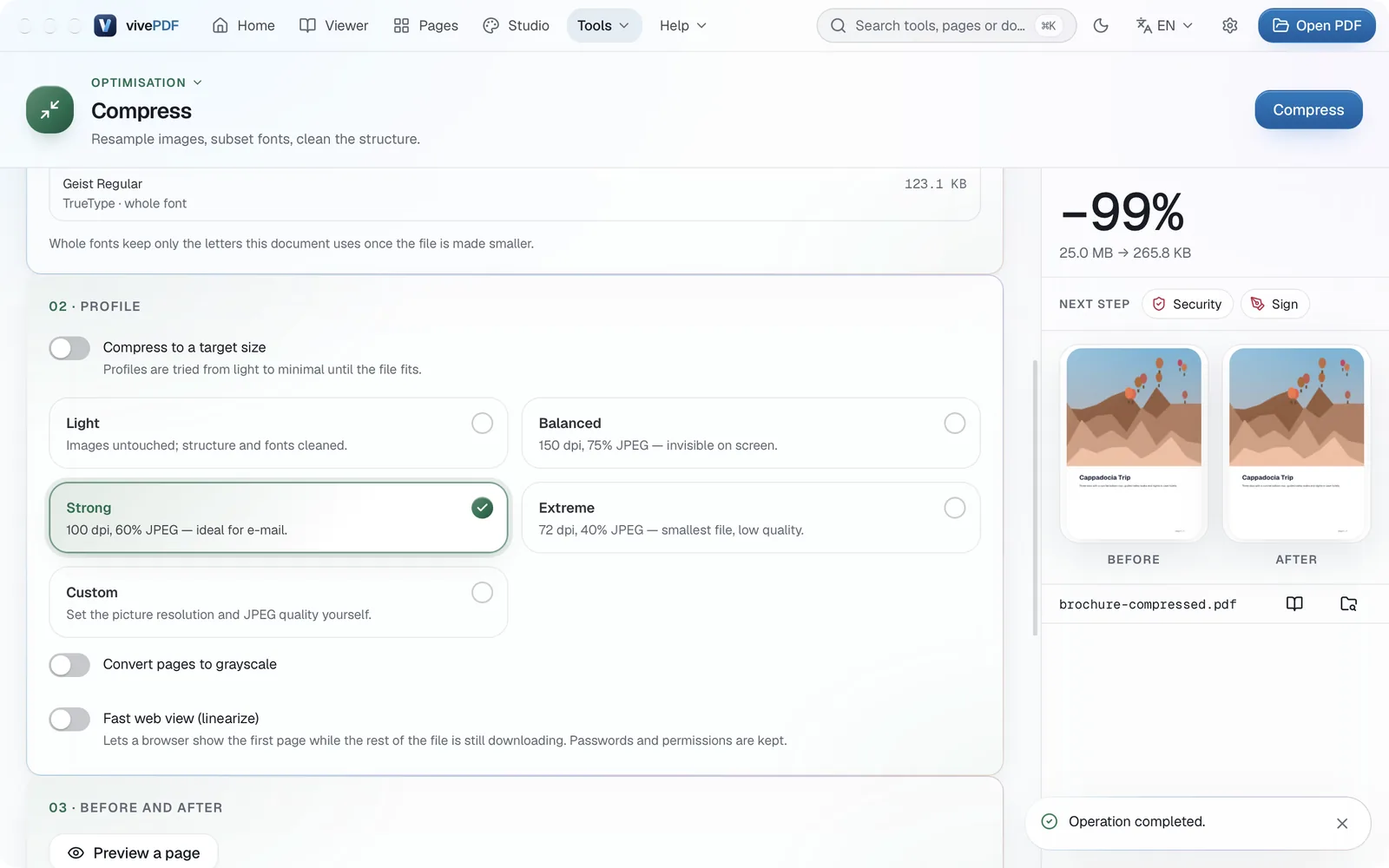
The result panel shows the percentage saved, the old and new size and a before-and-after preview. In the example below, a 25 MB brochure came down to 266 KB.
Need to get under a set size?
Turn on Compress to a target size and enter the limit (for example 10 MB). vivePDF tries the profiles from light to strong and saves the first result that fits.
A text-heavy PDF that is already small gains little; the big savings come from large photos and scans. For scanned documents, also see Make scanned pages searchable (OCR).