Getting started
First steps
How to open a PDF the first time you start vivePDF, find the tool you need and see where the result is saved, with screenshots.
When you start vivePDF, the Home screen opens. To open a PDF, click Open PDF or drag the file onto the window; to reach a tool, use the Tools menu at the top or the command palette. Every tool writes its result to a new file, so your original stays as it was.
1. Open a document
- On Home, click Open PDF or press Ctrl+O and choose your file.
- Or drag the file from Finder or Explorer onto the window. Word, Excel and PowerPoint files and pictures open too.
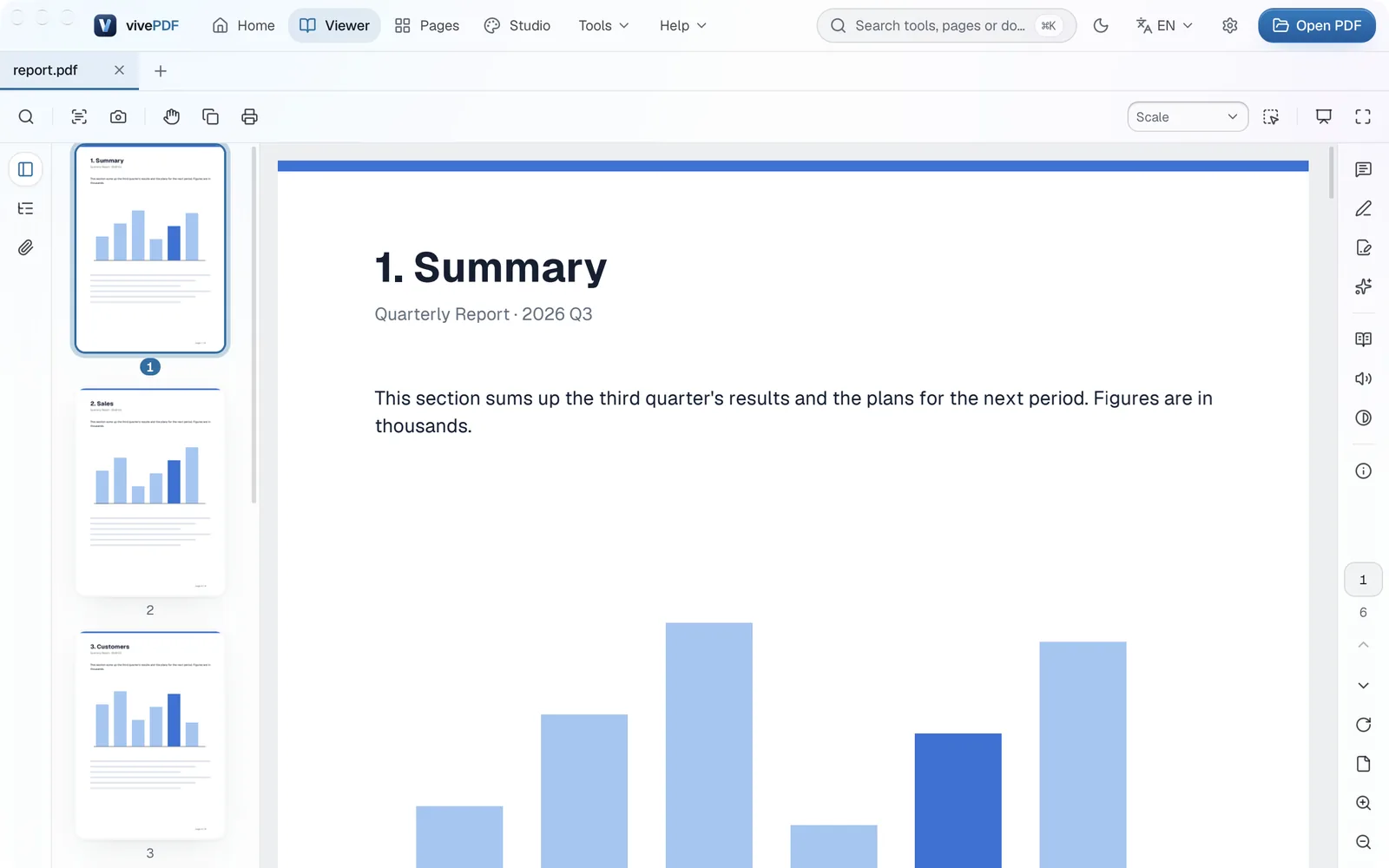
- The document opens in its own tab in the Viewer. Move between pages with the thumbnails on the left, and open the markup and editing tools from the strip on the right.
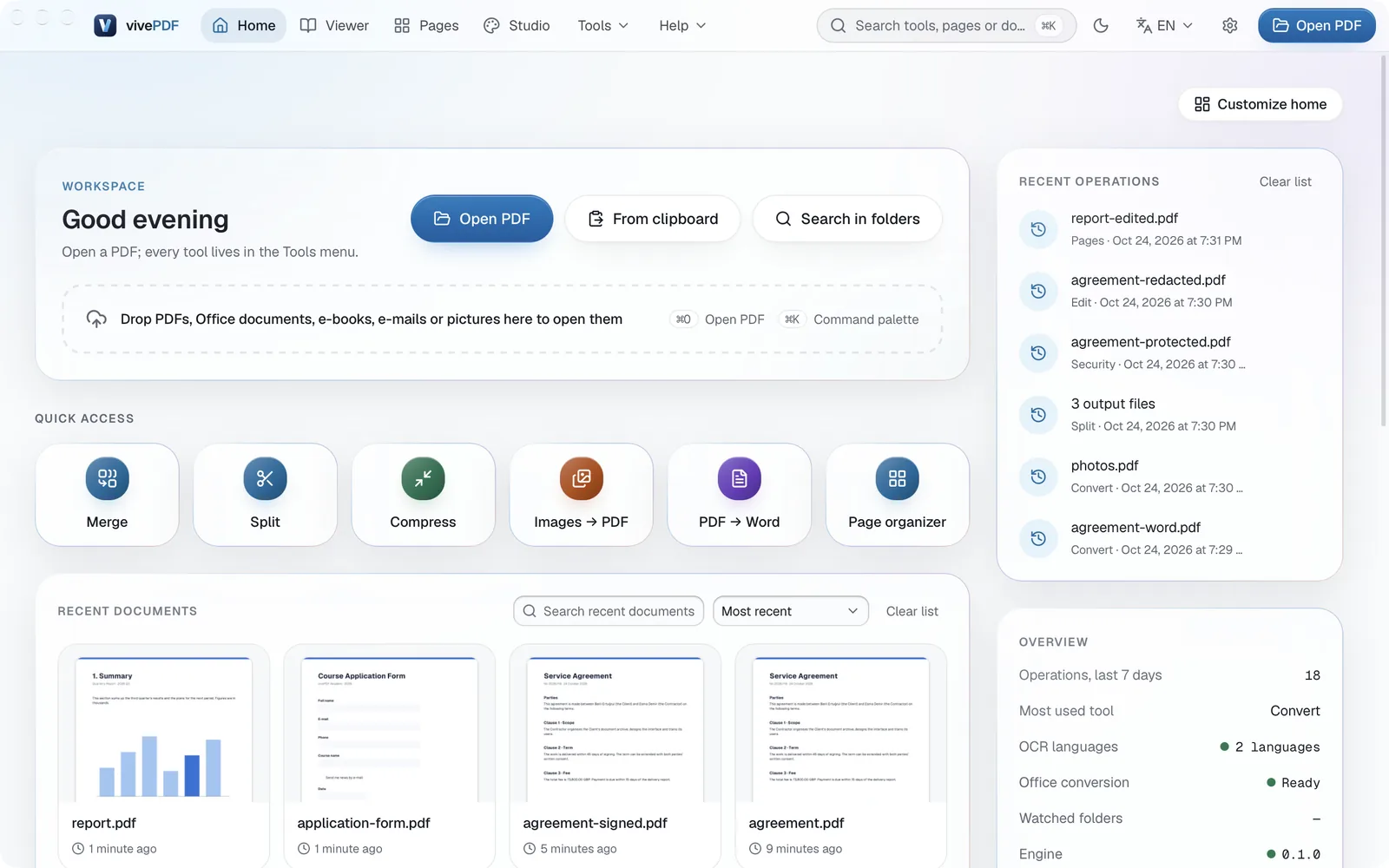
Documents you open stay in the Recent documents list, so next time they are one click away. The Merge, Split, Compress and other buttons in the Quick access row are shortcuts to the most used tools.
Shortcuts on a Mac
The Ctrl shortcuts in this guide use ⌘ on a Mac: ⌘+O opens a document and ⌘+K brings up the command palette. The full list is on the Keyboard shortcuts page.
2. Find the tool you need
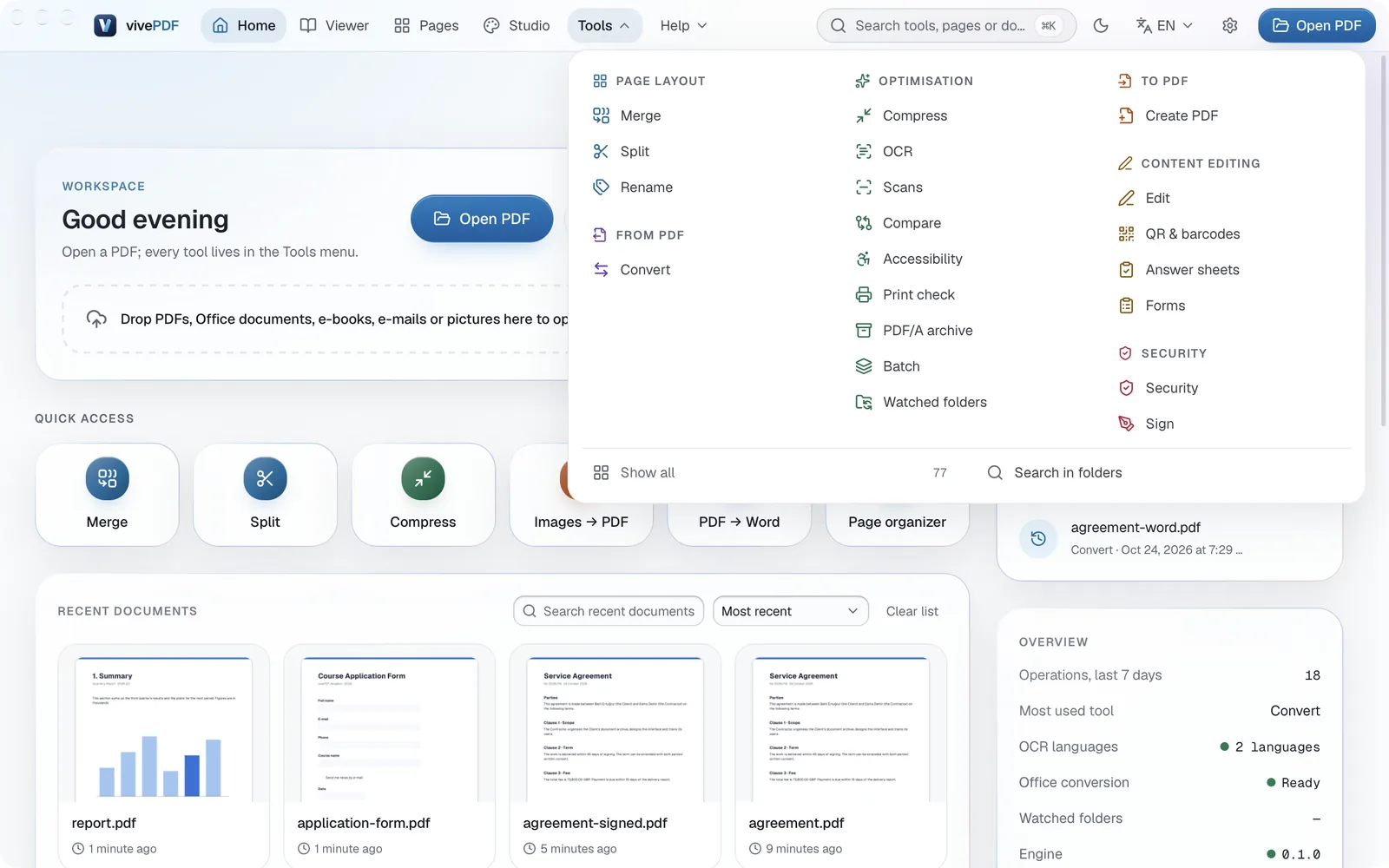
Every tool sits in the Tools menu at the top, grouped by what it does: Page layout, Optimisation, To PDF, From PDF, Content editing and Security.
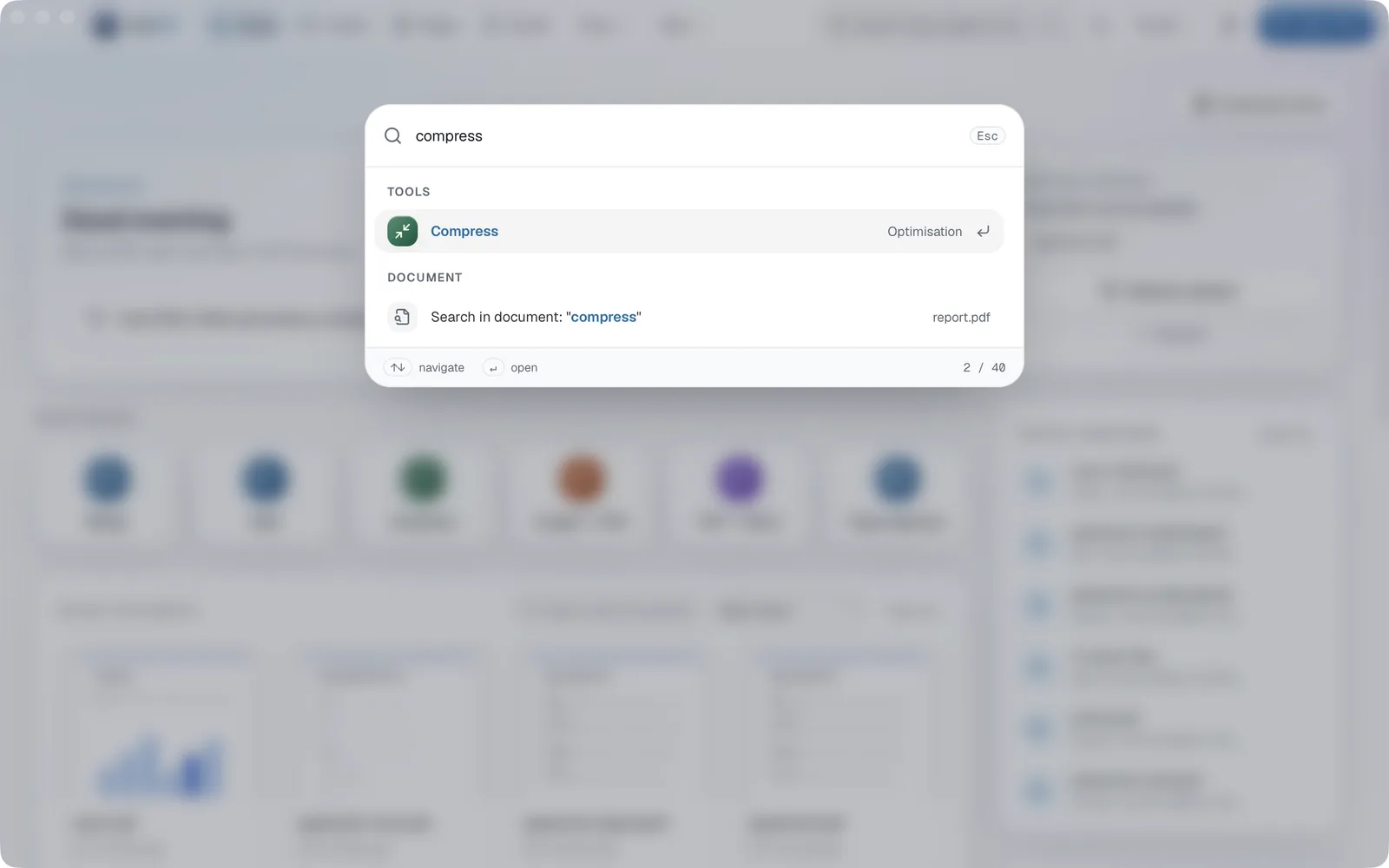
If you don’t know where a tool is, use the command palette: press Ctrl+K and type what you want to do. Typing “compress”, for example, puts Compress at the top; Enter opens it.
3. Find the result
When you run a tool, the result appears in the panel on the right: the page count or the space saved, a preview and the name of the new file. By default the file is saved next to the original with a short addition to its name (for example report-merged.pdf). Change where it goes with Browse next to Output file.
The Next step buttons in the result panel carry on with the new file, for example to compress or password-protect the file you just merged. The book icon opens the result in the Viewer, and the folder icon shows the file in Finder or Explorer.
What next?
Short guides for the most common jobs:
- Merge PDFs and split a PDF
- Compress a PDF
- Convert a PDF to Word, convert Word to PDF and make a PDF from photos
- Fill in a form, sign a PDF and edit text in a PDF
- Highlight and annotate and delete pages
- Password-protect a PDF and redact a PDF
The whole interface is described on the Interface page.