How-to guides
Merge PDFs
How to combine several PDFs into one file with vivePDF, put them in order, take only some pages and save the result, step by step.
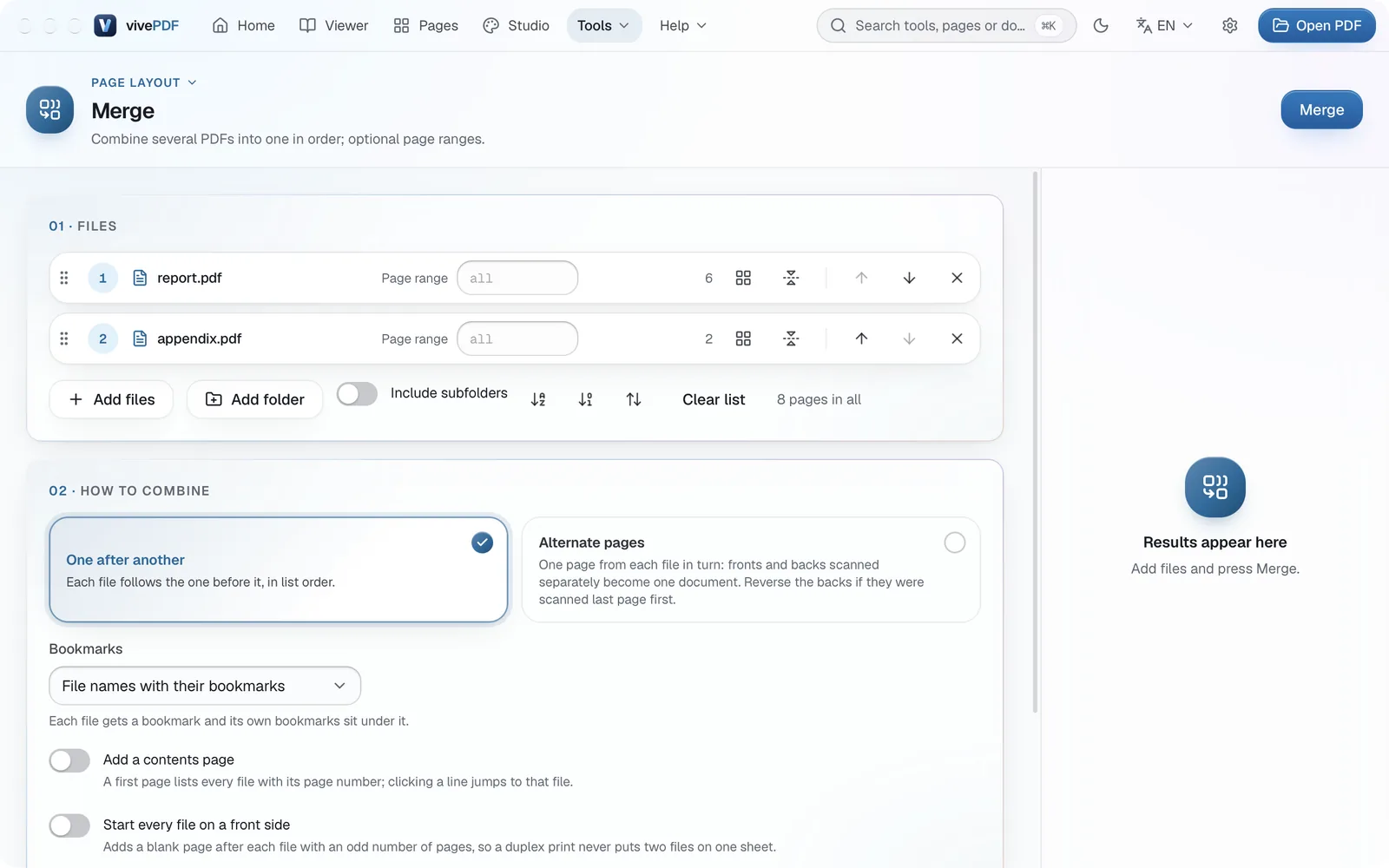
To combine several PDFs into one file, open Tools › Merge, add the files, put them in order and click Merge. The original files are left untouched; the result is saved as a new PDF.
- Open Tools › Merge, or click the Merge shortcut on Home.
- Choose the PDFs with Add files or drag them onto the window. For every PDF in a folder, use Add folder.
- Set the order: drag a row by its handle, or use the up and down arrows on the right.
- To take only some pages of a file, type them in its Page range box, such as
1-3, 5; leave it empty for every page. - Click Merge.
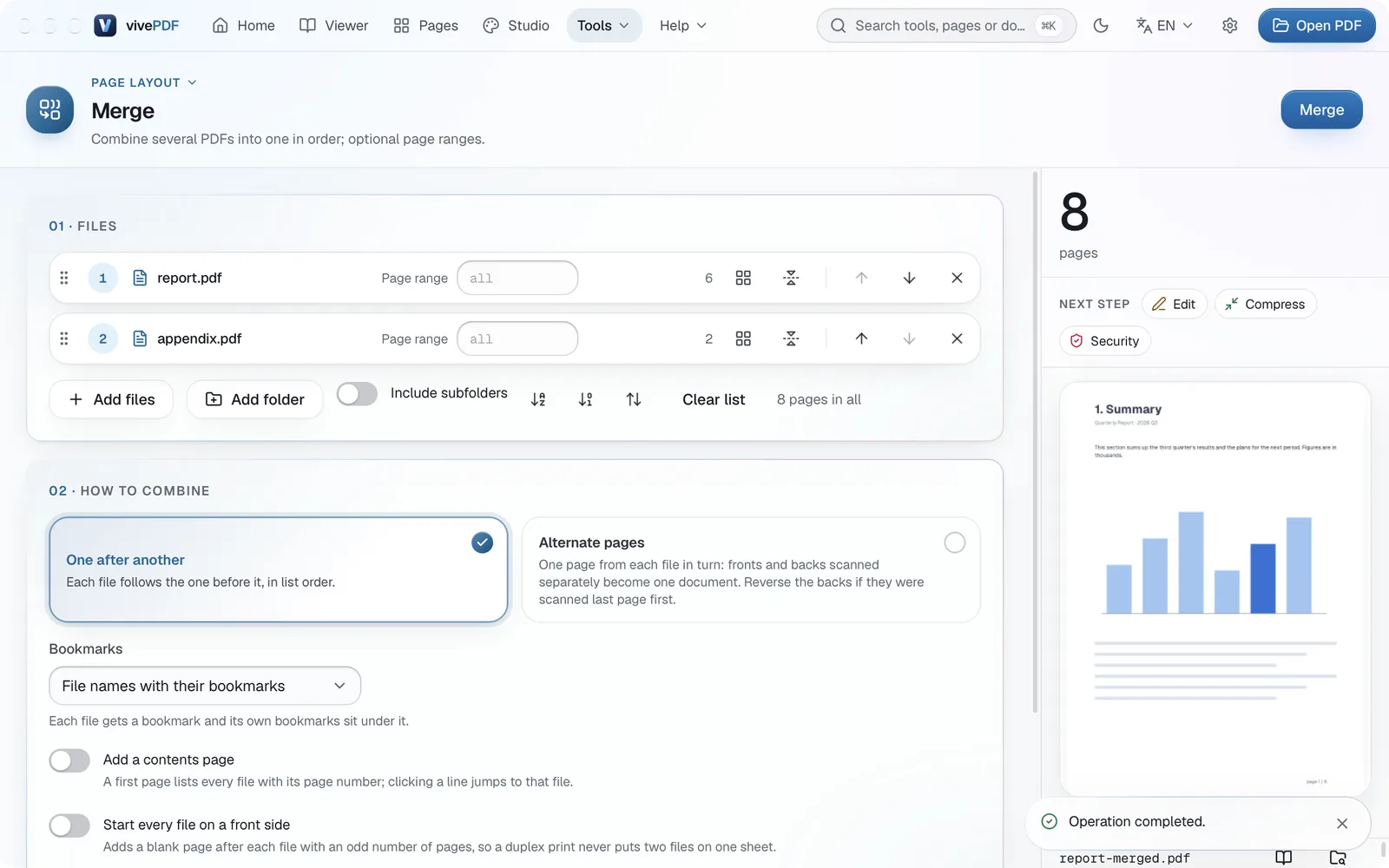
The result appears in the panel on the right: the total page count, a preview of the first page and the name of the new file (for example report-merged.pdf). The book icon opens it, and the Next step buttons let you compress or protect it straight away.
Useful options
- Bookmarks: adds a bookmark for each file and keeps the file’s own bookmarks under it.
- Add a contents page: puts a list of the files with their page numbers on the first page.
- Start every file on a front side: keeps two files from sharing a sheet when you print double-sided.
Scanned the fronts and backs separately?
Under How to combine, choose Alternate pages. The fronts and backs are interleaved into one document, and if you scanned the backs starting from the last page, their order is reversed.
See the Tools page for more. To do the opposite and cut a PDF into parts, see Split a PDF.