How-to guides
Fill in a PDF form
How to open a fillable PDF form in vivePDF, type into its fields, tick its boxes and save the filled-in form, step by step.
To fill in a PDF form, open it in vivePDF, click a field, type and press Save. When a form has fillable fields, vivePDF tells you in a bar above the document; there is no separate tool to open.
- Open the form with Open PDF or by dragging it onto the window. The bar This document has fillable form fields. appears at the top.
- If the fields are hard to see, click Highlight fields.
- Click a field and type. Press Tab for the next field and Shift+Tab for the previous one. Click check boxes and options to tick them.
- When you are done, click Save next to Unsaved changes in the toolbar.
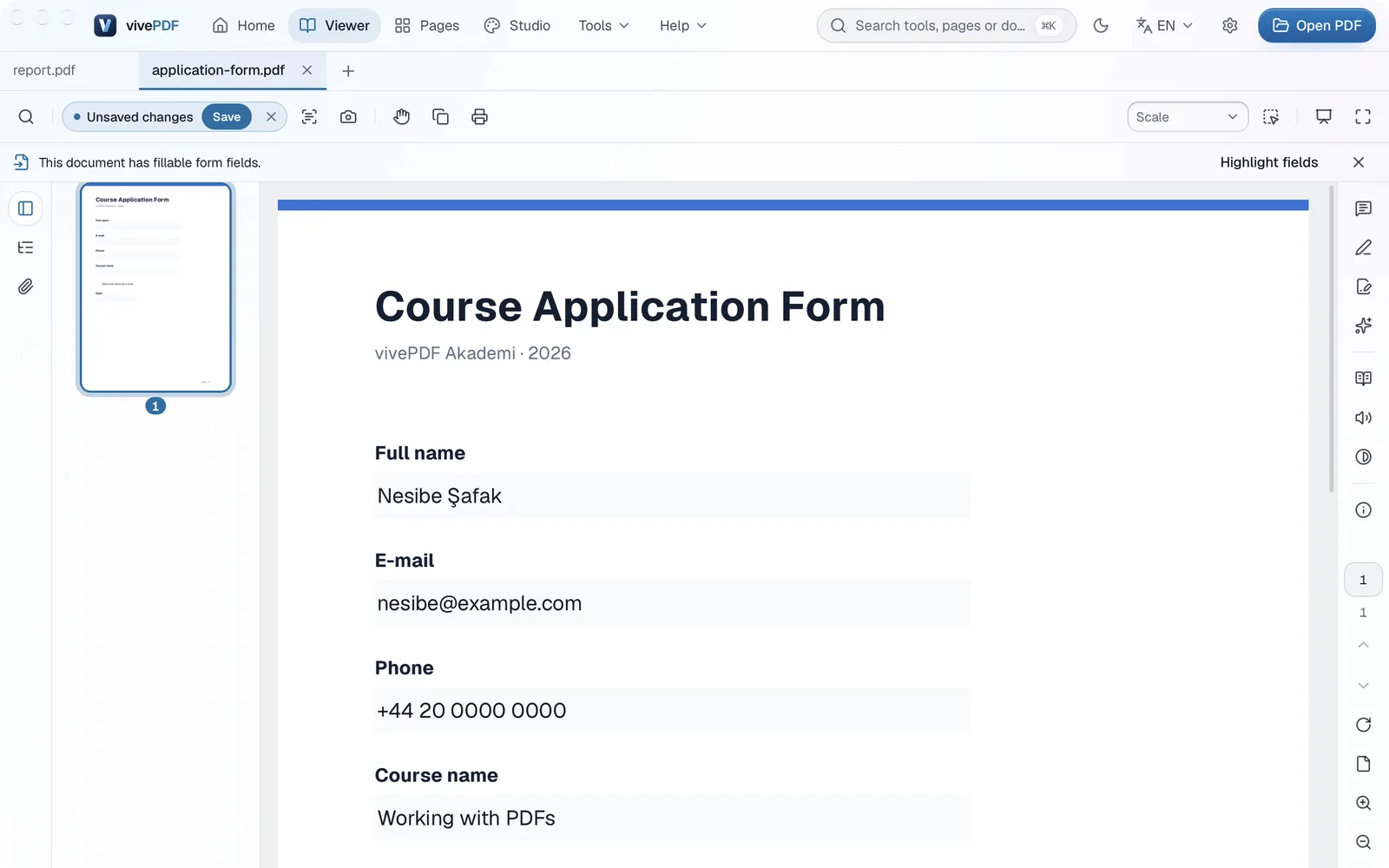
Save writes the changes into the form itself; to keep an empty copy too, make a copy of the file before you start. If you change your mind, the cross next to Save discards the changes.
Forms without fields
Some forms are only lines with nothing to click. To fill those in, open Edit from the strip on the right and click the empty space where you want to write; a new text box opens there. See Edit text in a PDF.
Signing the form
If the form needs your signature, see Sign a PDF. To build a form of your own, use Tools › Forms.