How-to guides
Convert a PDF to Word
How to turn a PDF into an editable Word (.docx) file with vivePDF, keeping tables, pictures, headers and footers, step by step.
To convert a PDF to Word, open Tools › Convert, choose PDF → Word on the left, add your file and click Convert. The result is a .docx file you can edit in Word or LibreOffice, with its tables and pictures carried over.
- Open Tools › Convert and choose PDF → Word in the list on the left.
- Choose the PDF, or drag it onto the window.
- If you only need some pages, type them in the Pages box, such as
1-3, 5; leave it empty to convert every page. - Click Convert.
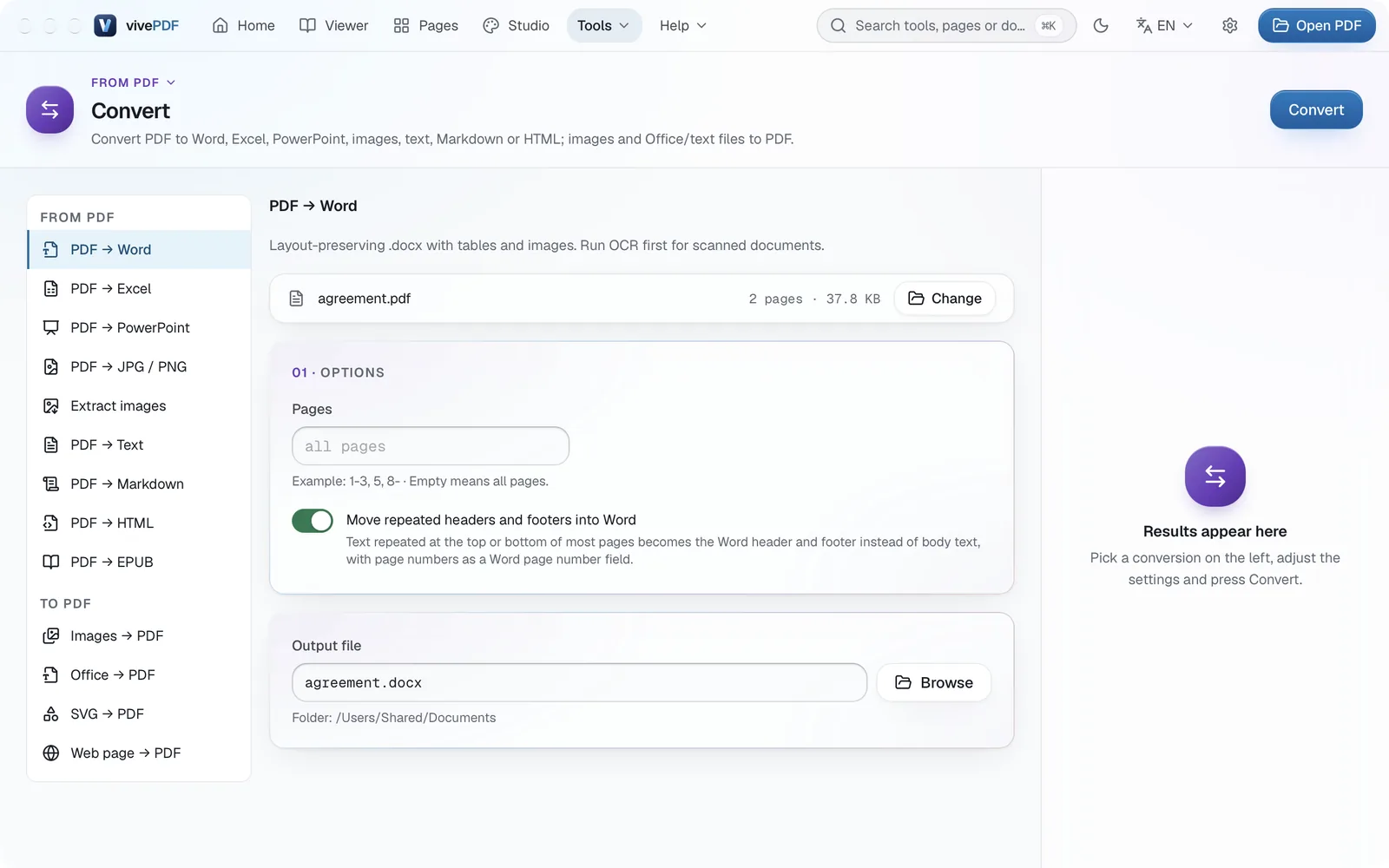
The new .docx file appears in the result panel. The button next to it opens the file in its default app, and the folder icon shows it in Finder or Explorer.
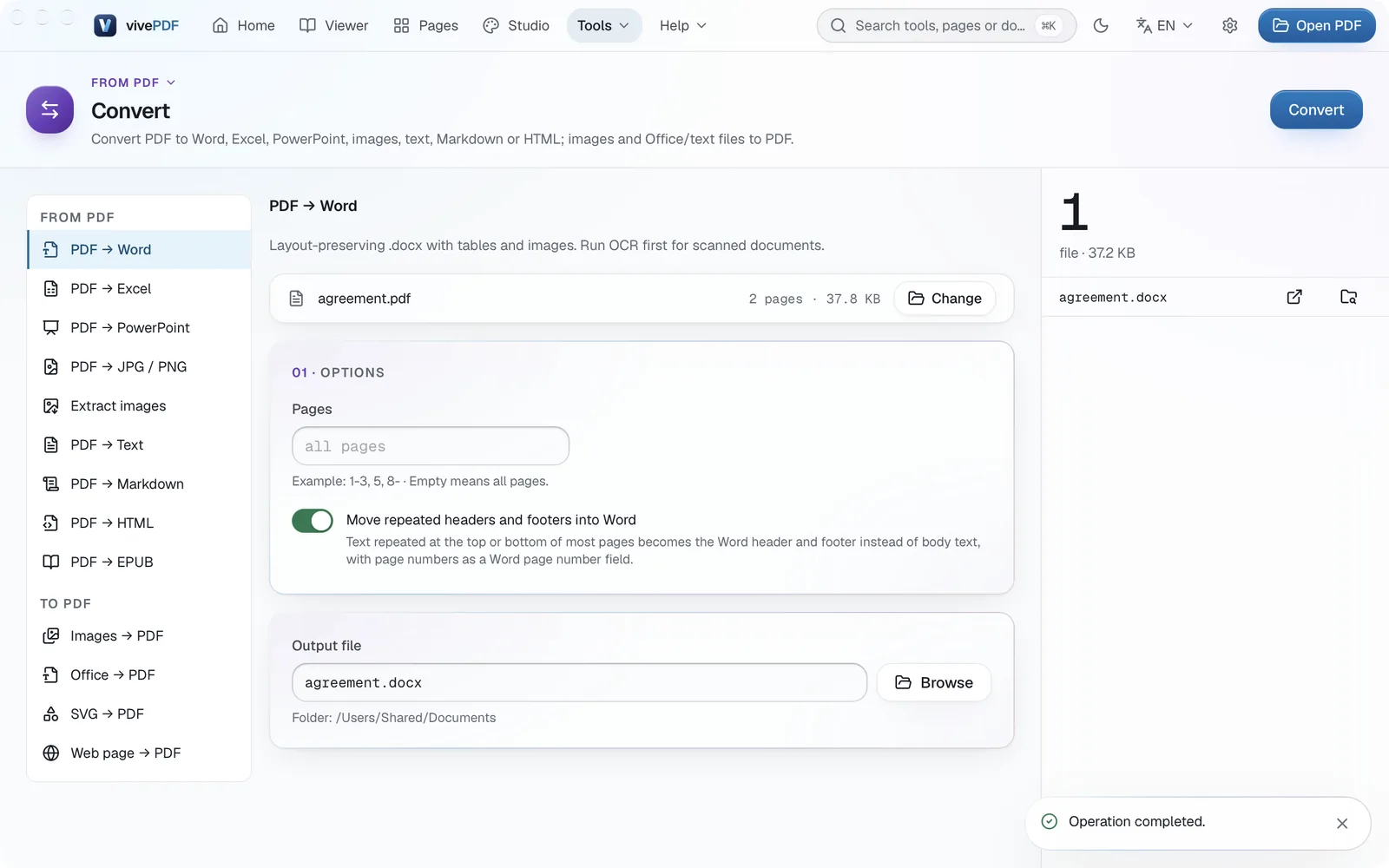
With Move repeated headers and footers into Word on, text repeated at the top or bottom of most pages becomes Word’s own header and footer instead of body text, and page numbers turn into Word’s page number field.
Scanned PDFs
The pages of a scanned document are pictures; with no selectable text in them, Word gets only pictures too. Recognise the text with OCR first, then convert to Word.
The same tool converts PDFs to Excel, PowerPoint, pictures, text and HTML. Every format is listed on the Convert files page.