How-to guides
Make a PDF from photos
How to combine photos, scans or a whole folder of pictures into one PDF with vivePDF, and choose the paper size, orientation and margin.
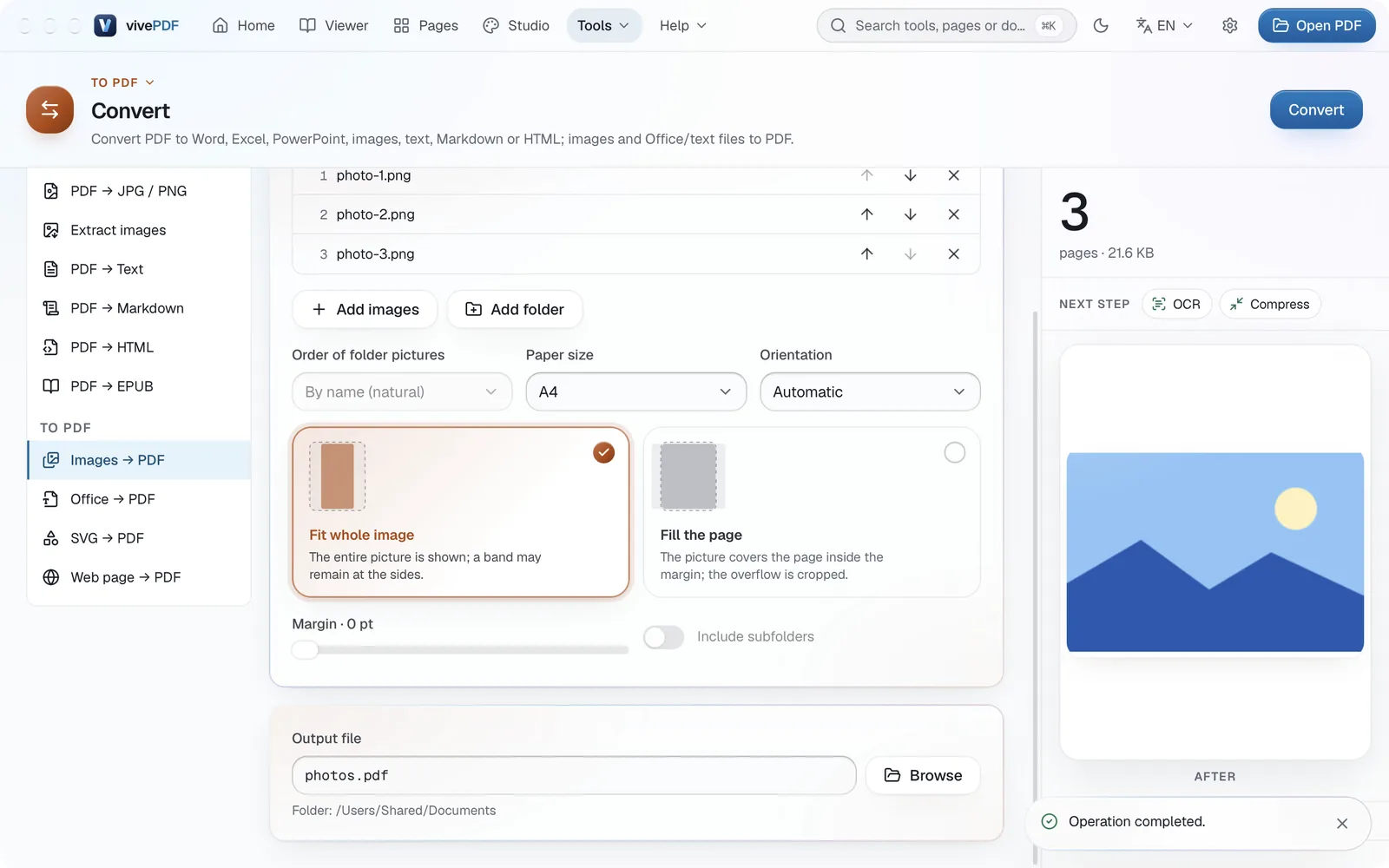
To make a PDF from photos, open Tools › Convert, choose Images → PDF on the left, add the pictures and click Convert. Each picture becomes a page; JPG, PNG, HEIC, WebP, TIFF and many other picture types are supported.
- Open Tools › Convert and choose Images → PDF in the list on the left.
- Choose the pictures with Add images, or drag them onto the window. For a whole folder, use Add folder.
- Set the order with the up and down arrows.
- Choose the Paper size, the Orientation and how each picture is placed: Fit whole image never crops, Fill the page covers the page edge to edge.
- Click Convert.
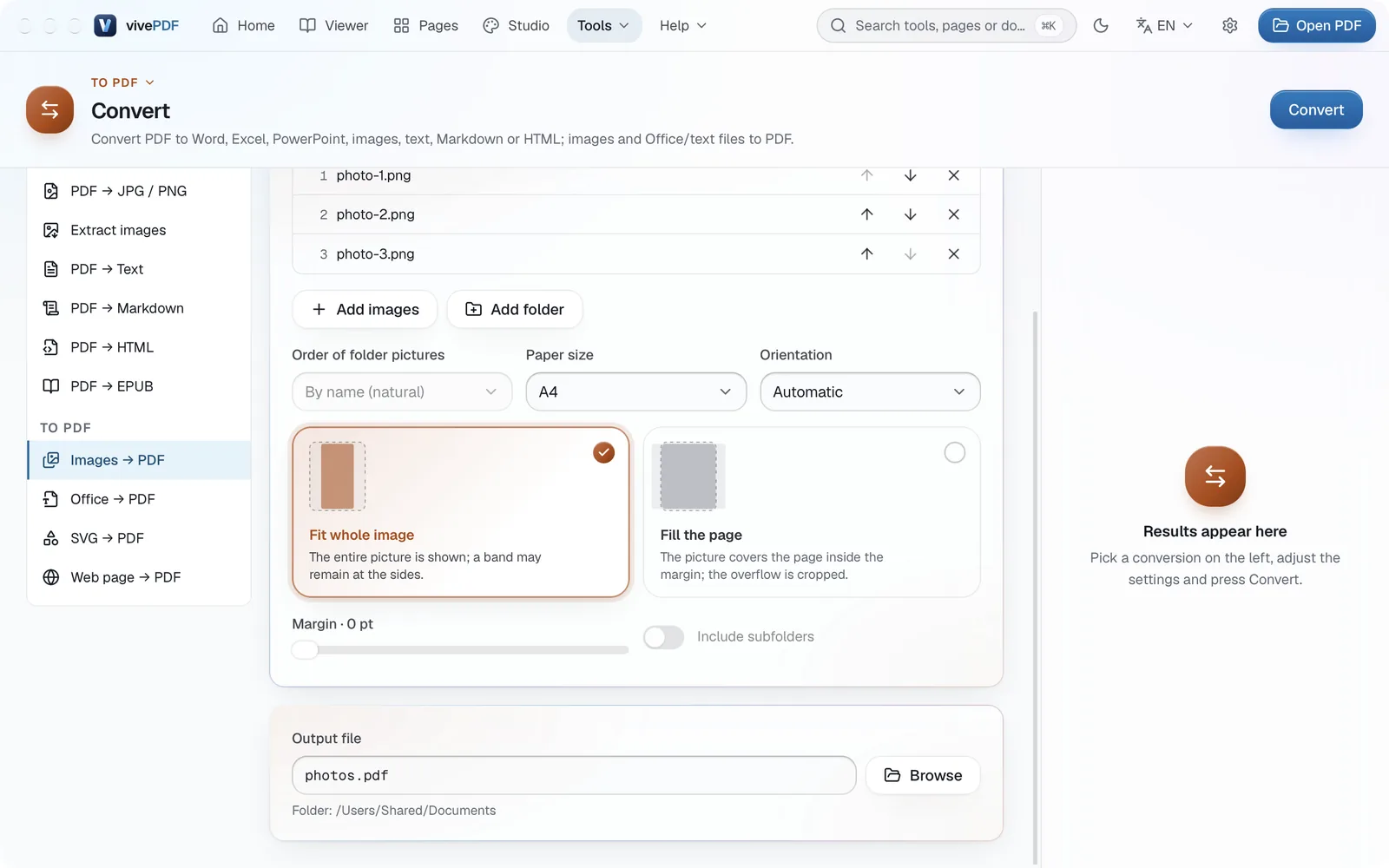
With the orientation on automatic, landscape photos go on landscape pages and portrait photos on portrait pages. Margin leaves a white border around each picture.
Photos of paper documents
If you photographed a paper document with your phone, From photo in Tools › Scans gives a better result: it finds the corners of the sheet, straightens the perspective and whitens the background.
Every conversion option is on the Convert files page.