How-to guides
Delete pages from a PDF
How to select the pages you don't want in a PDF and delete them with the vivePDF page organizer, then save the result to a new file.
To delete pages from a PDF, open it, switch to Pages in the top bar, select the pages, press Delete and click Apply and save. The result is written to a new file; your original stays as it was.
- Open the document and click Pages in the top bar. Every page is laid out as a thumbnail.
- Click the page you want to delete. For several pages, Ctrl-click them one by one, Shift-click a range, or tick the boxes in the corners of the cards.
- Press Delete or click the bin icon in the bar at the bottom. The selected pages leave the list at once.
- Check the Output file name on the right and click Apply and save.
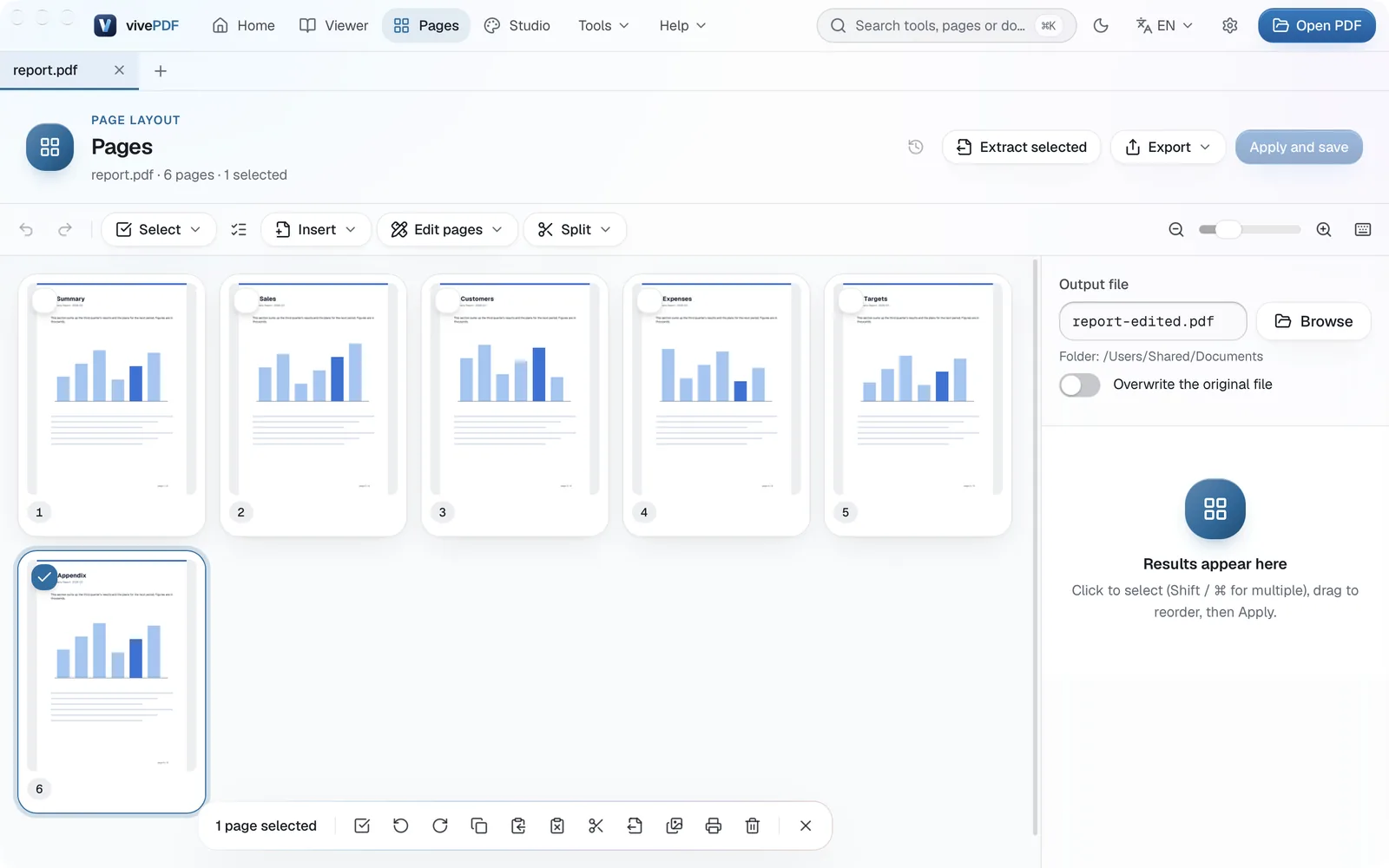
Deleted the wrong page? Press Ctrl+Z; nothing is written to the file until you press Apply and save.
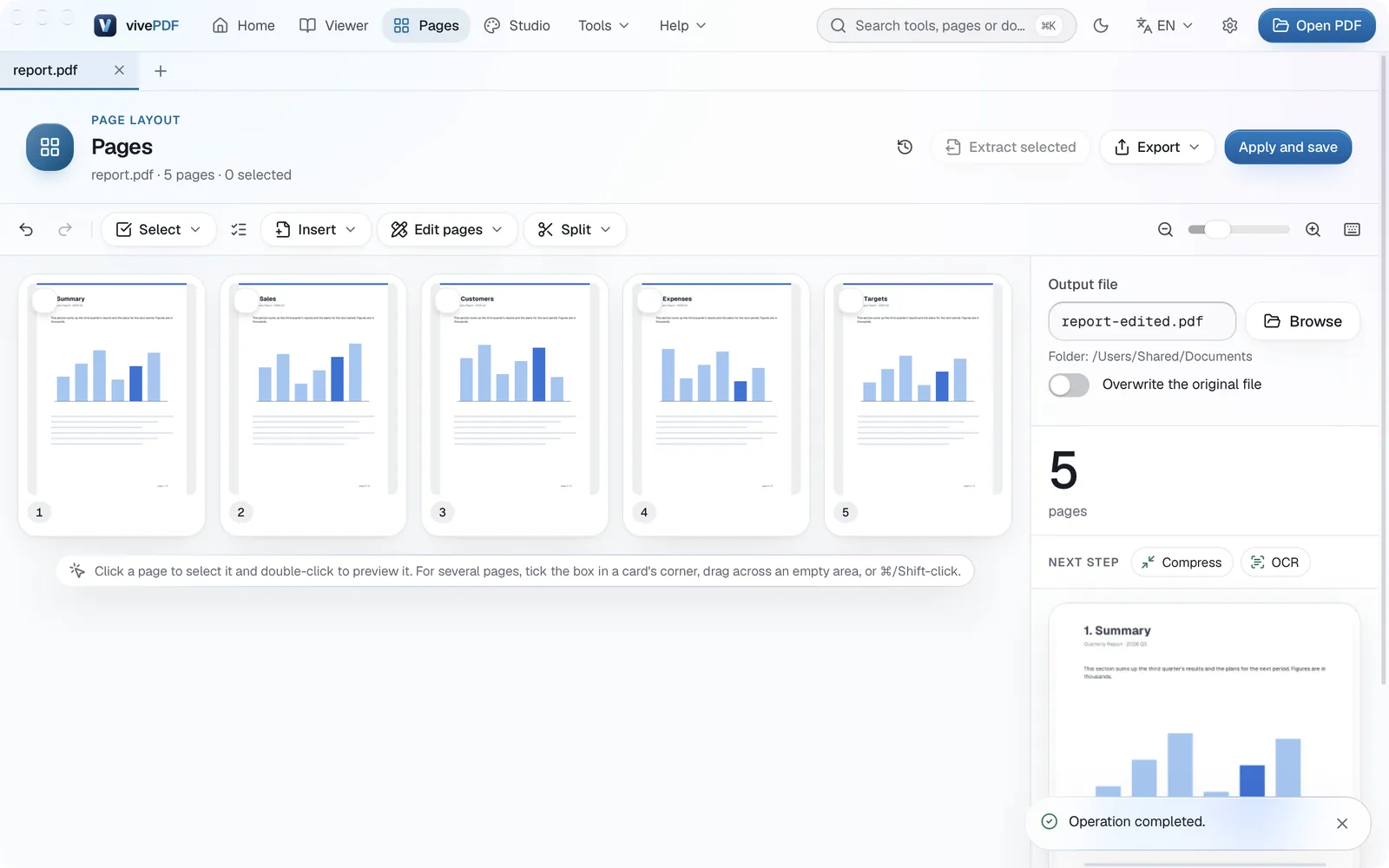
Changing the original file instead
Turn on Overwrite the original file to apply the change to the original instead of a new file. This cannot be undone, so leave it off if you are unsure.
The same screen lets you reorder pages by dragging, rotate them, add pages from another PDF and extract the selected pages to a separate file. All of it is on the Organise pages page.