How-to guides
Password-protect a PDF
How to protect a PDF with a password and AES-256 encryption in vivePDF, limit printing and copying, and keep the owner password safe.
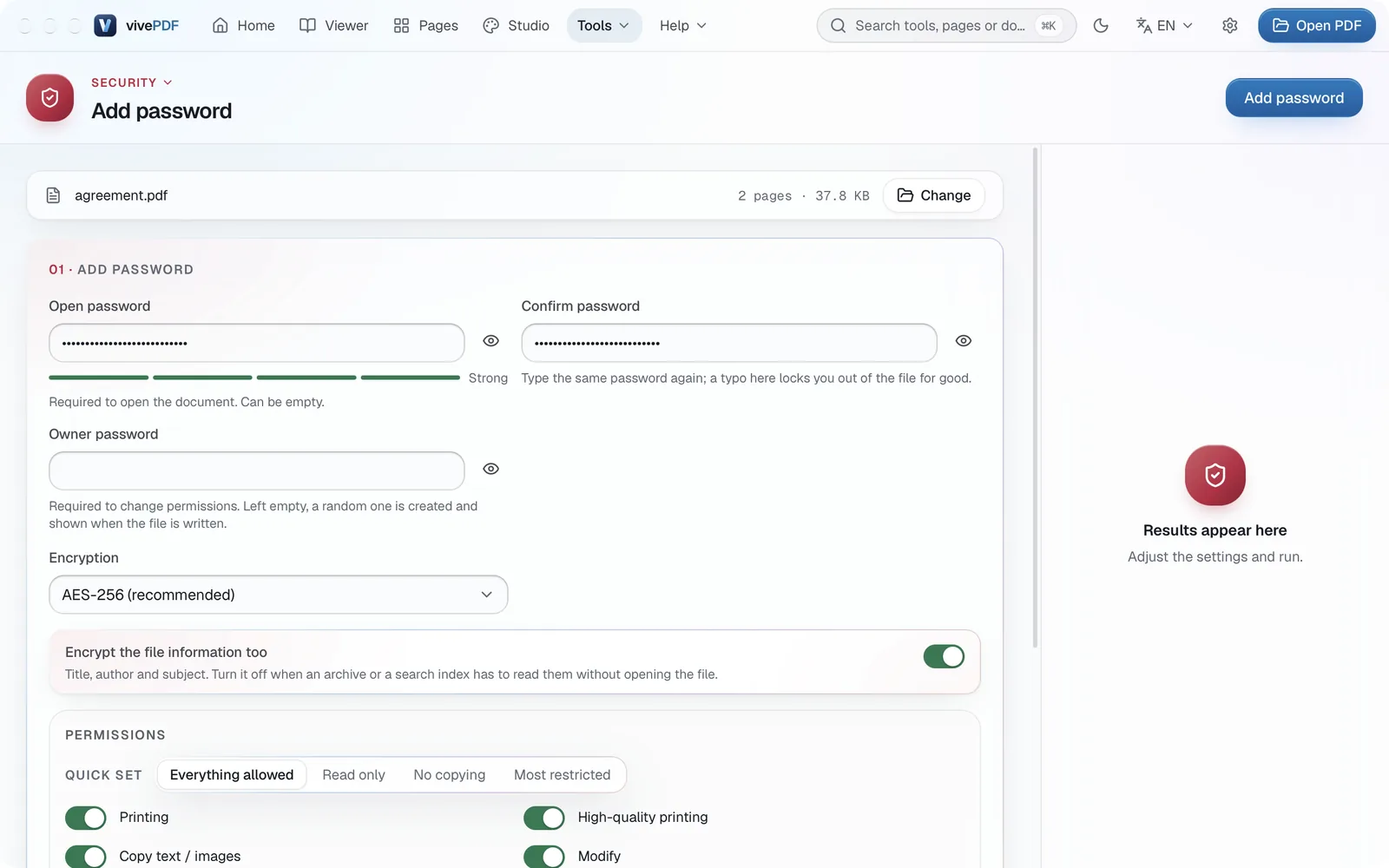
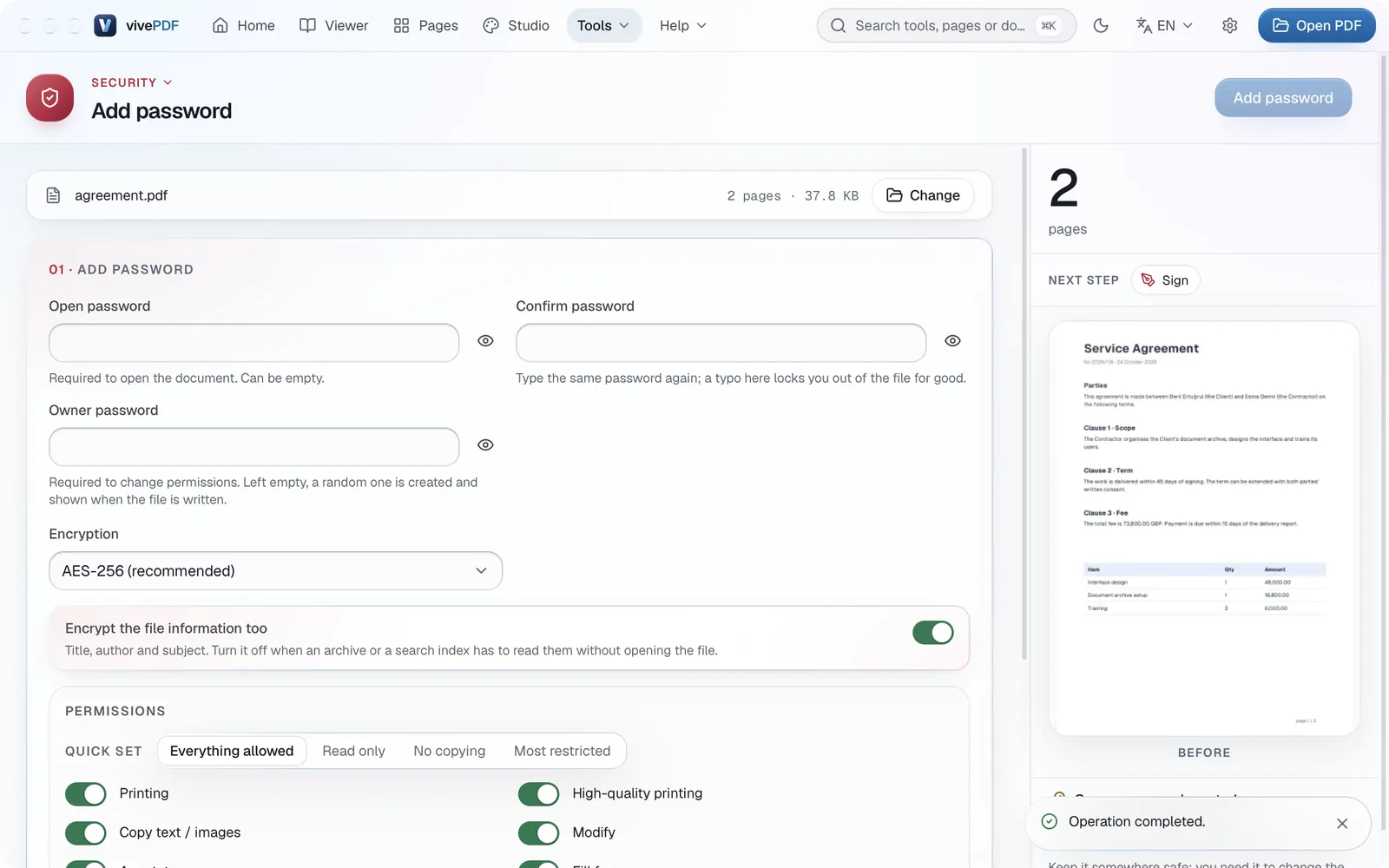
To put a password on a PDF, open Tools › Security, choose your file, type the Open password twice and click Add password. The protected copy is saved as a new file; your original stays as it was.
- Open Tools › Security; the page opens on Add password. Choose the PDF, or drag it onto the window.
- Type the Open password and type it again in Confirm password. The bar below shows how strong the password is.
- Leave Encryption on AES-256 (recommended).
- To limit printing or copying, pick Read only, No copying or Most restricted under Quick set in the Permissions section.
- Click Add password.
If you left the Owner password empty, vivePDF makes up a random owner password and shows it once in the result panel. It is the only way to change the permissions later, so copy it with the button next to it and keep it somewhere safe.
Don't forget the password
If you forget the open password, nobody can open the file, vivePDF included. Keep it in a password manager.
Removing a password, sealing with a certificate, watermarks and the other security tools are on the Security page.