How-to guides
Highlight and annotate a PDF
How to highlight, underline or strike out text in a PDF with vivePDF, draw with a pen, add shapes and text boxes, write notes on marks and save.
To highlight text in a PDF, open Annotate / mark up from the strip on the right, choose Highlight and drag over the text. Change the colour and opacity of your marks in the bar at the top, and press Save or Save as when you are done.
- Open the document in the Viewer and click Annotate / mark up in the strip on the right. The markup bar opens at the top.
- Choose Highlight and drag over the text you want to highlight.
- Change the colour and opacity with Colour and Opacity on the second row of the bar.
- To add a note to a mark, click it and choose Note in the small menu that appears.
- Save writes the marks into the original file (it asks first); for a separate copy, choose Save as.
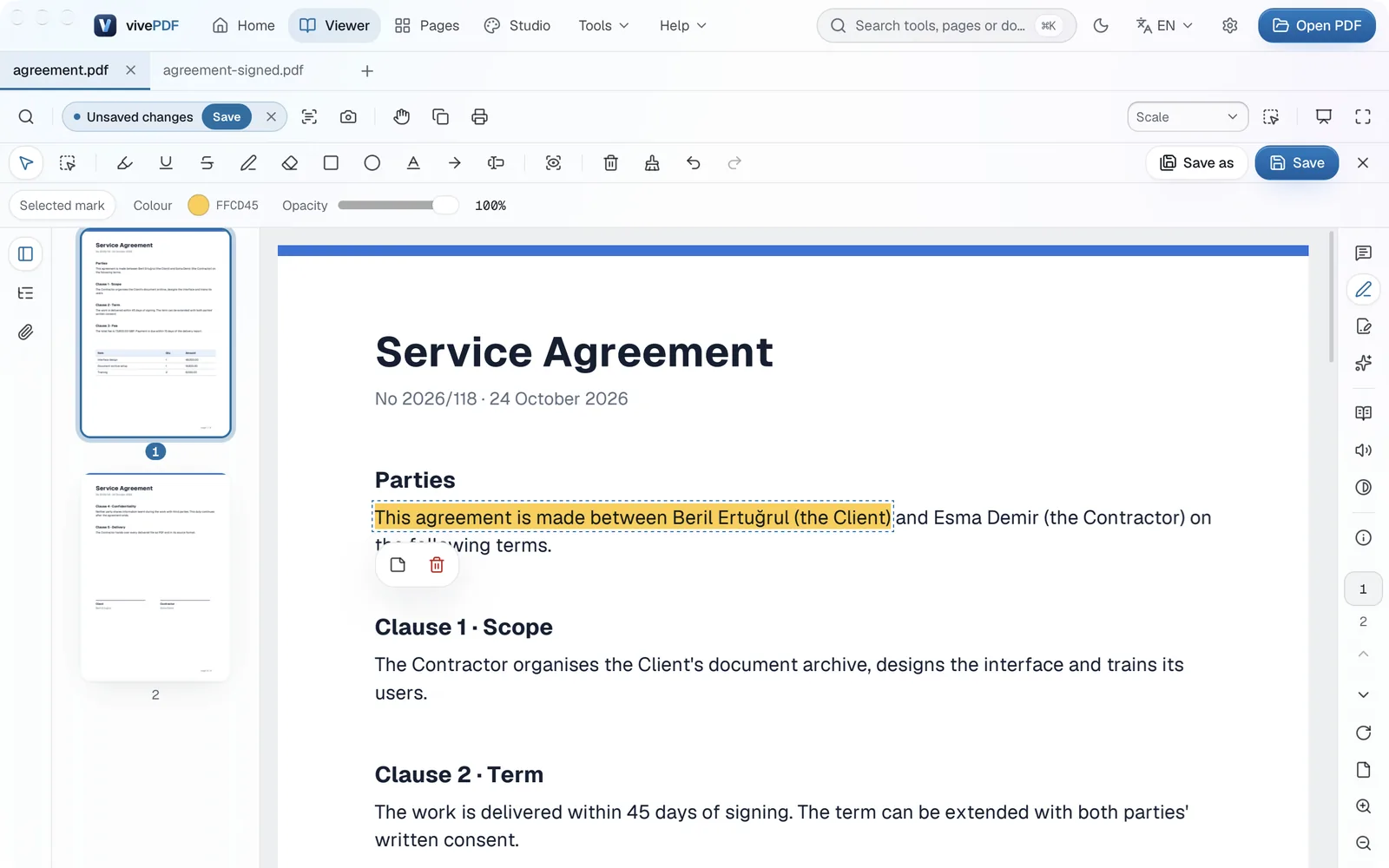
The other tools in the bar:
- Underline, Strikeout and Squiggly: mark the text with a line instead of a highlight.
- Pen: free drawing; the Eraser rubs out part of a drawing.
- Rectangle, Ellipse, Line and Arrow: put shapes on the page.
- Text box: adds writing anywhere on the page.
When you select text, the small menu that appears also has a Highlight button, for a quick highlight without opening the bar.
All your notes in one place
After saving, the Comments panel in the strip on the right lists every mark and note by page. From there you can reply, mark a note resolved, or export the notes as Markdown, XFDF or FDF.
Other features that help while reading are on the Open and read a PDF page.