How-to guides
Redact a PDF
How to permanently remove names, amounts, ID numbers and other sensitive details from a PDF with vivePDF and cover them with a black box.
To remove sensitive information from a PDF for good, open Redaction under Tools › Security, choose your file, type the text to hide and click Redact. Matching text is deleted from the file and covered with a box; the redacted copy is saved as a new file.
- Open Tools › Security, click Security above the page title and choose Redaction from the list. Choose the PDF.
- Type a word you want to hide in Text to find and press Enter. Each one is added as a separate tag.
- Check the Sensitive data found list: if vivePDF finds ID numbers, IBANs or e-mail addresses in the document, it lists them here so you can add them with one click.
- If you like, type a note such as
GDPRin Text on the box and pick a Box colour. - Click Redact.
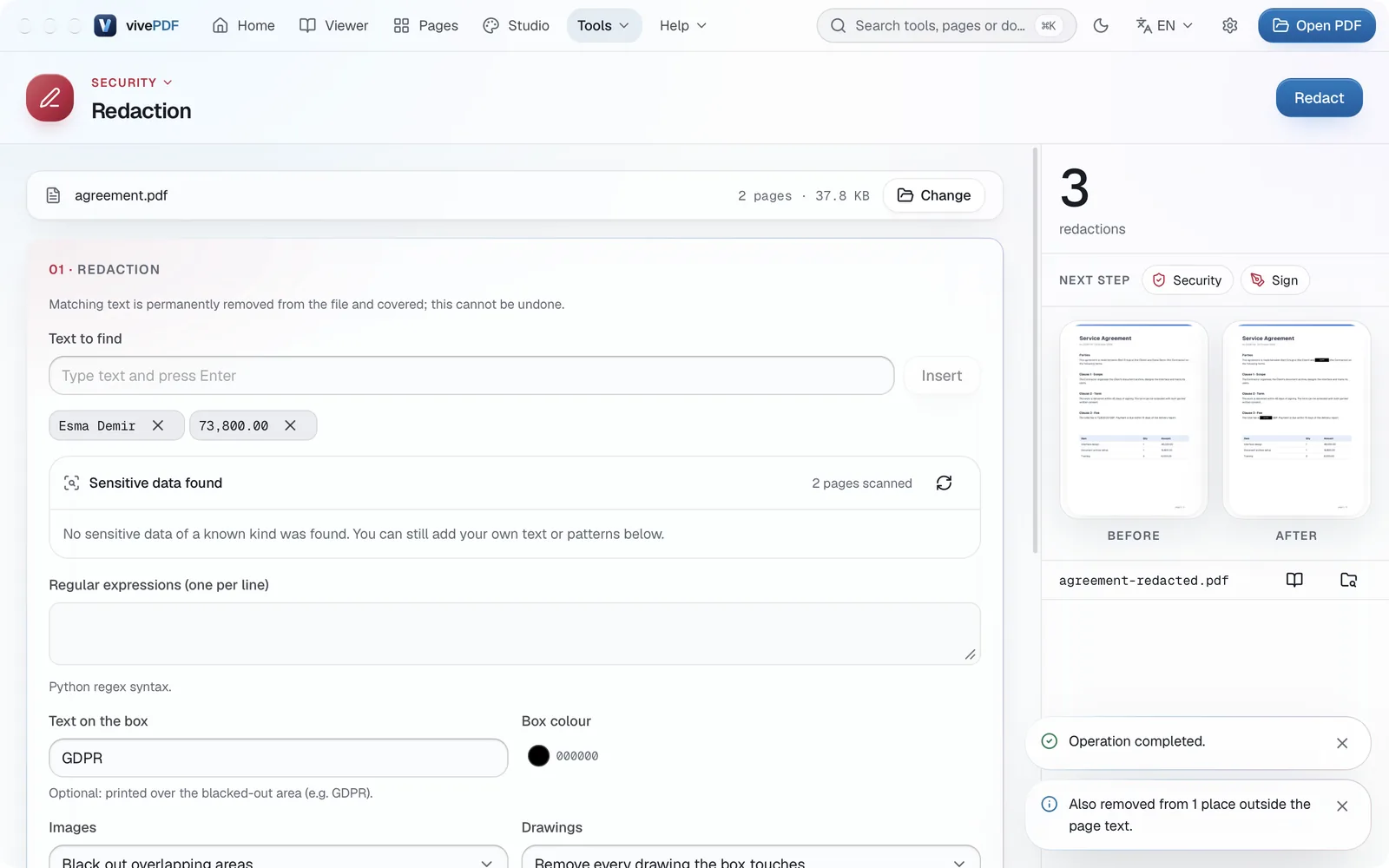
The result panel shows how many places were redacted and a before-and-after preview. With Also remove matches outside the page on, the same text is also removed from comments, form fields, bookmarks and document properties, and vivePDF tells you how many places that was.
Drawing a black box is not enough
A black rectangle drawn over text does not hide it; the text stays underneath and can be copied. Redaction really deletes it from the file. This cannot be undone, so keep your original.
Redacting an area by hand
To black out a signature, a photo or any other area, open the document in the Viewer, click Edit in the strip on the right, choose Page tools › Black out area, drag over the area and click Black out.
Regular expressions and the other options are on the Security page.