How-to guides
Sign a PDF
How to sign a PDF by hand in vivePDF: draw your signature or take it from a photo, save it, place it on the page and set its size.
To sign a PDF, open it, click Edit in the strip on the right, choose Page tools › Place signature, draw your signature and place it on the page. The signed document is saved as a new file; your original stays as it was.
- Open the document in the Viewer and click Edit in the strip on the right.
- In the bar at the top, choose Place signature from the Page tools menu.
- Click New and draw your signature with a mouse, pen or finger. To use a photo of your signature on paper, choose From photo. Click Save signature.
- Click where the signature goes, drag it into place and change its size with the Width slider.
- Click Apply signature.
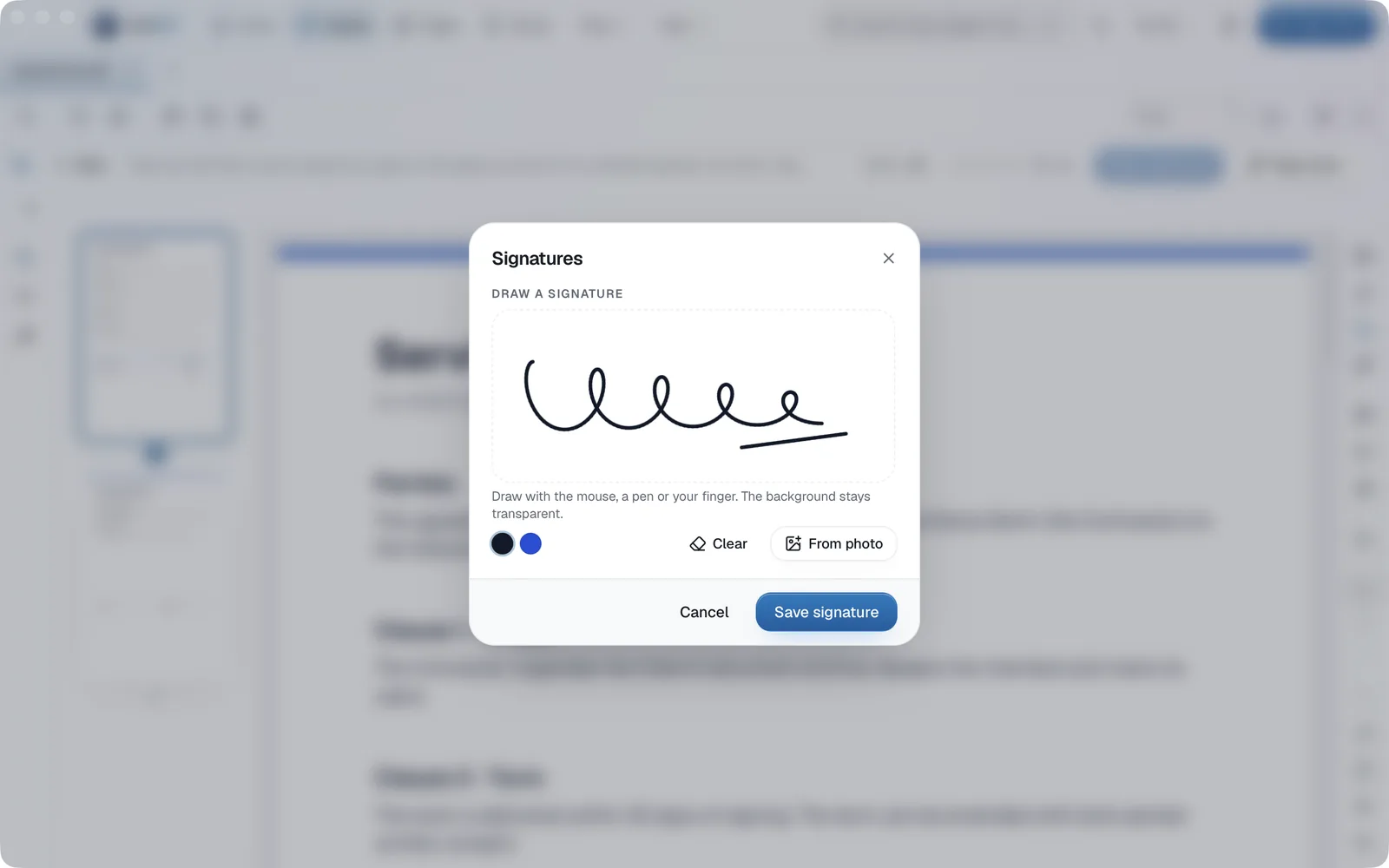
A saved signature is ready next time, so you don’t have to draw it again. It is kept on this computer and never sent anywhere.
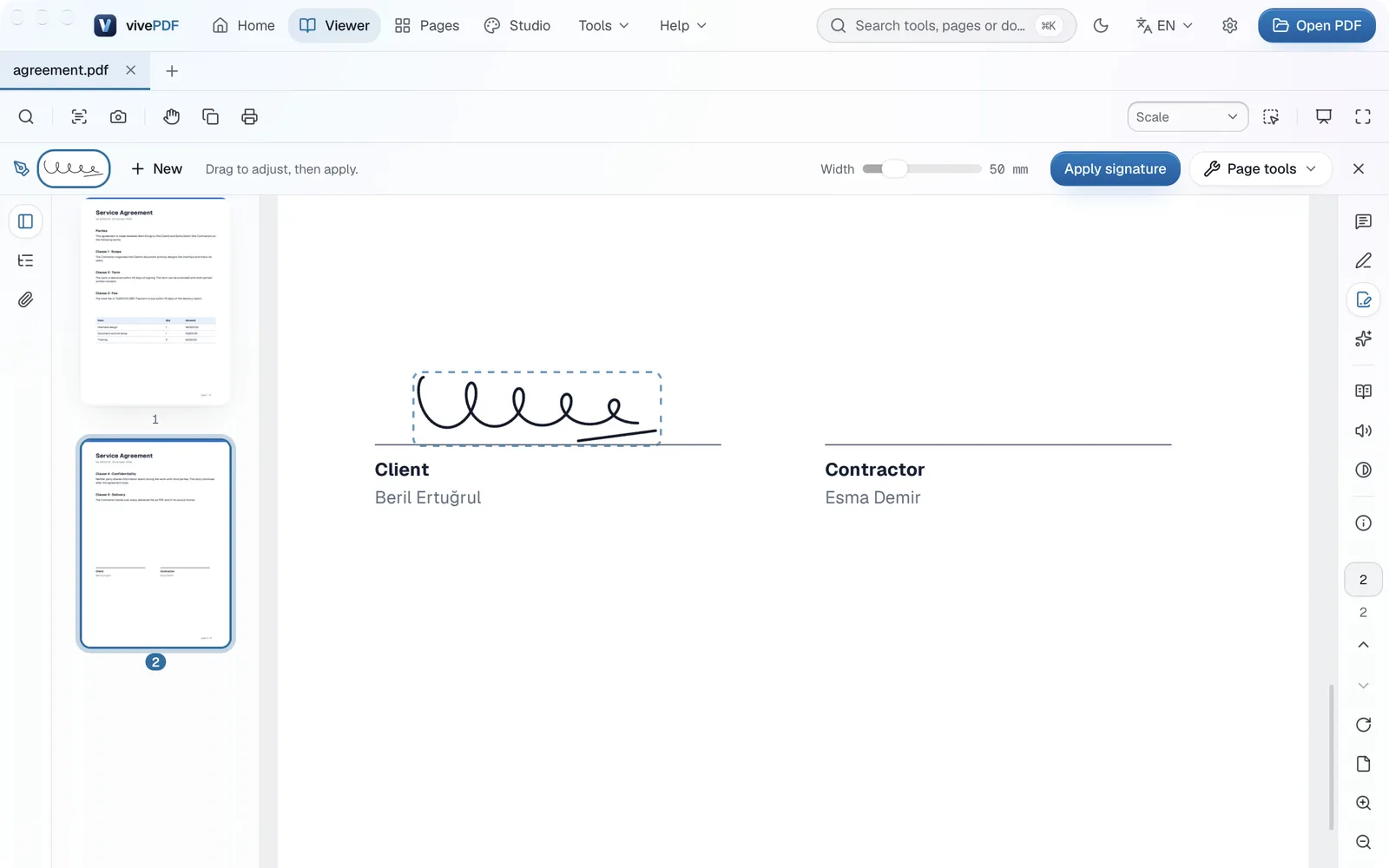
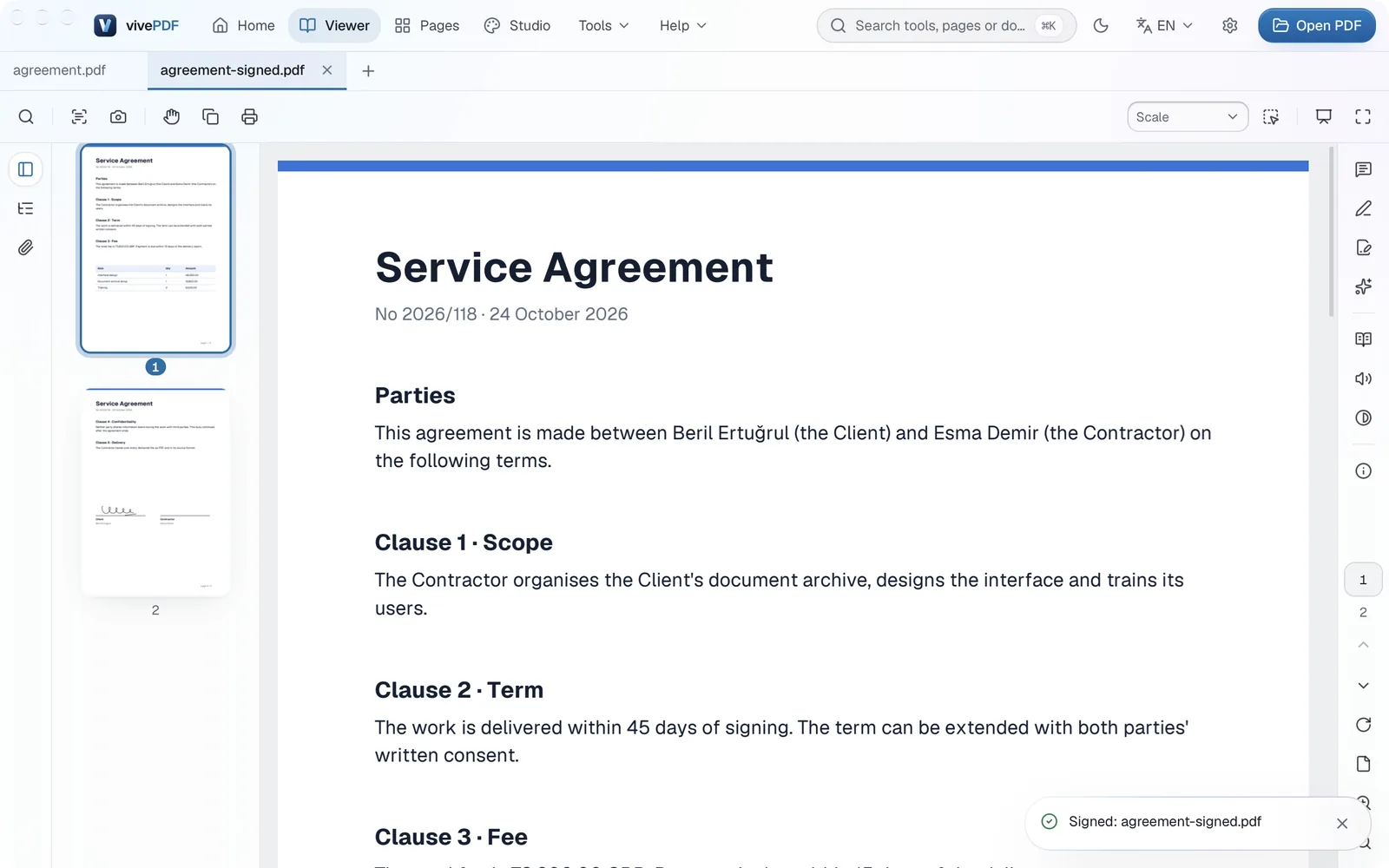
After Apply signature, the signed copy (for example agreement-signed.pdf) opens in a new tab.
A drawn signature is not a digital signature
A drawn signature is a picture on the page; it does not prove the document was not changed afterwards. For formal documents you can sign with a .p12 or .pfx certificate; see Sign and verify.