How-to guides
Edit text in a PDF
How to correct the text in a PDF with vivePDF: click a paragraph and change it, add a new text box and save the change, step by step.
To change the text in a PDF, open it, click Edit in the strip on the right, click the paragraph you want to change and type. The font, size and colour are in the panel on the right; when you are done, press Save or Save as….
- Open the document in the Viewer and click Edit in the strip on the right. Edit text is selected in the bar at the top.
- Click the paragraph you want to change; a frame appears around it. Correct the text as in any text box.
- To add new text, click an empty spot on the page; a new text box opens there.
- Change the font, size and colour in the Edit panel on the right. Press Ctrl+Z to undo a step.
- Save (Ctrl+S) writes the change into the file itself; to keep the original, choose Save as… (Ctrl+Shift+S) and give the new file a name.
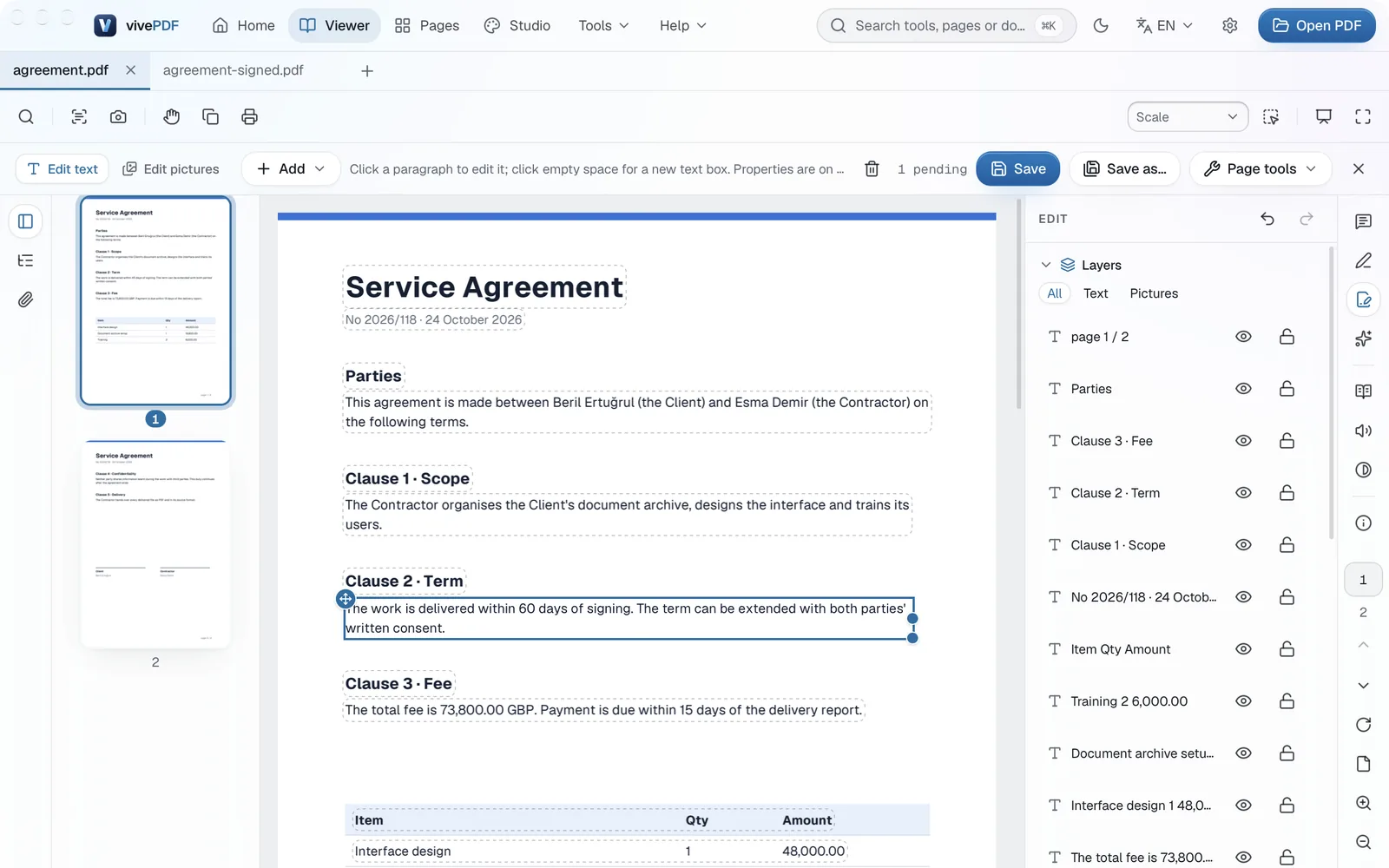
The Layers list on the right shows every text and picture on the page. The eye icon hides an item, and the lock icon keeps it from being changed by accident.
Pictures and other items
Switch to Edit pictures in the bar at the top to move, resize, replace or delete the pictures on the page. The Add menu puts new items on the page, such as a text box, picture, shape, table, chart or formula.
Scanned pages have no text to edit
A scanned page is one big picture. To edit its words, recognise the text with OCR first.
If you only want to remove some words and cover them with a box nobody can read, use redaction instead of editing; edited text can survive elsewhere in the file.