How-to guides
Split a PDF
How to split a PDF into separate files with vivePDF by page ranges, a fixed number of pages, file size or bookmarks, step by step.
To cut a PDF into parts, open Tools › Split, choose your file, pick a split method and click Split. Each part is saved as its own PDF in a new folder next to the original.
- Open Tools › Split, or click the Split shortcut on Home, and choose the PDF.
- Pick a Split method. To pull out particular groups of pages, By ranges is the most flexible.
- Type the ranges in the Parts box, separated by semicolons:
1-2; 3-4; 5-6makes three files. To pick the pages by looking at them, click Choose on pages. - Click Split.
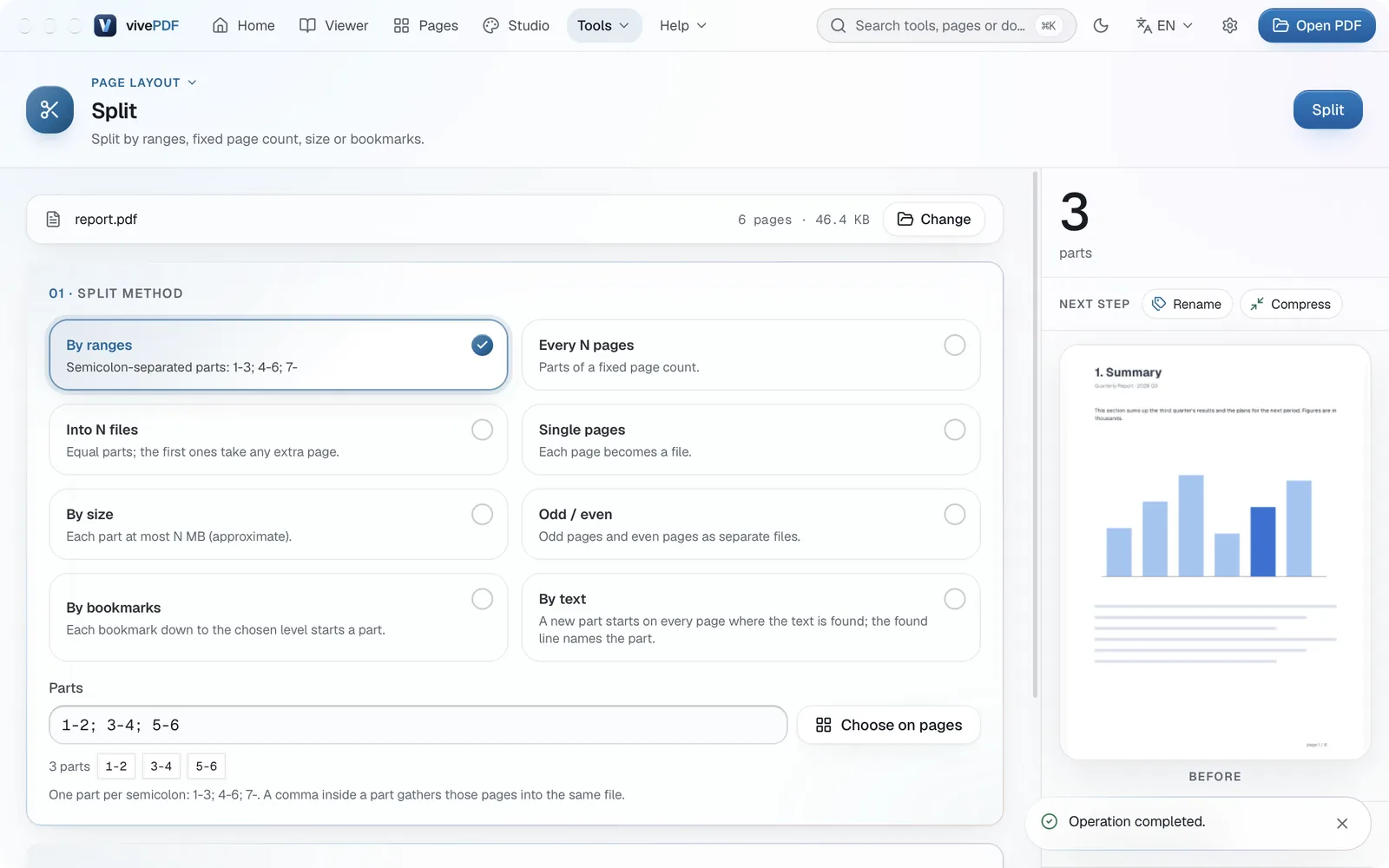
The other methods:
- Every N pages: cuts the document into parts with the same number of pages.
- Into N files: splits the document into as many equal files as you ask for.
- Single pages: makes every page a file of its own.
- By size: no part goes over the MB limit you set; handy for e-mail attachments.
- Odd / even: puts the odd and even pages into separate files.
- By bookmarks: every bookmark at the chosen level starts a new part; ideal for chapters.
- By text: a new part starts on every page where the text you search for appears.
Only need a few pages?
To take a few pages out into one file, select them in the page organizer and use Extract selected instead of splitting.
To put the parts back together, see Merge PDFs.