How-to guides
Convert Word, Excel and PowerPoint to PDF
How to turn Word, Excel, PowerPoint and other Office files into PDFs with vivePDF, convert several files at once and set up LibreOffice.
To turn a Word, Excel or PowerPoint file into a PDF, open Tools › Convert, choose Office → PDF on the left, add the file and click Convert. LibreOffice does the Office conversion; if it is not on your computer, vivePDF offers to set it up.
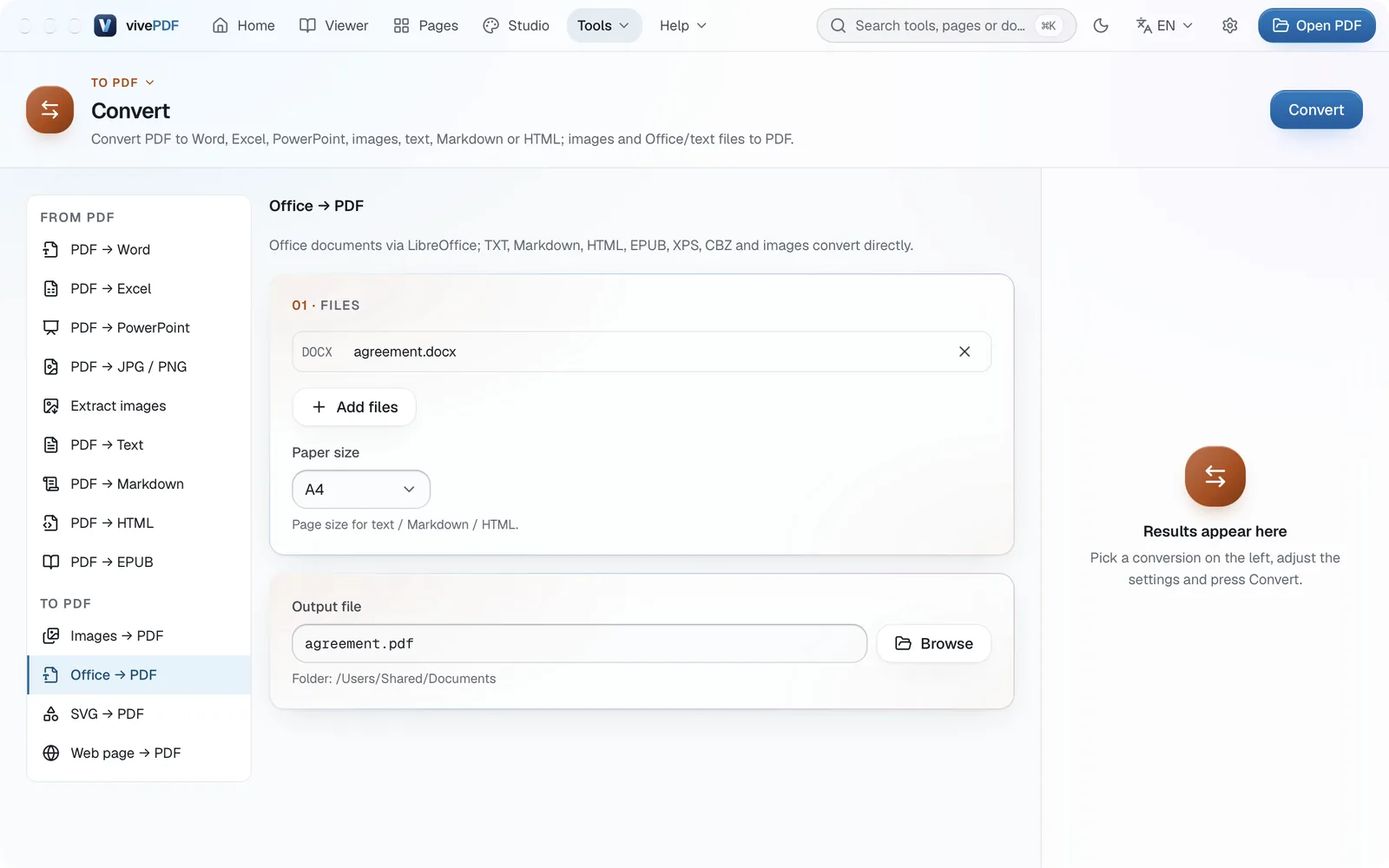
- Open Tools › Convert and choose Office → PDF in the list on the left.
- Choose .docx, .xlsx, .pptx, .odt and similar files with Add files, or drag them onto the window. You can add more than one.
- Rename the Output file if you like; Browse picks another folder.
- Click Convert.
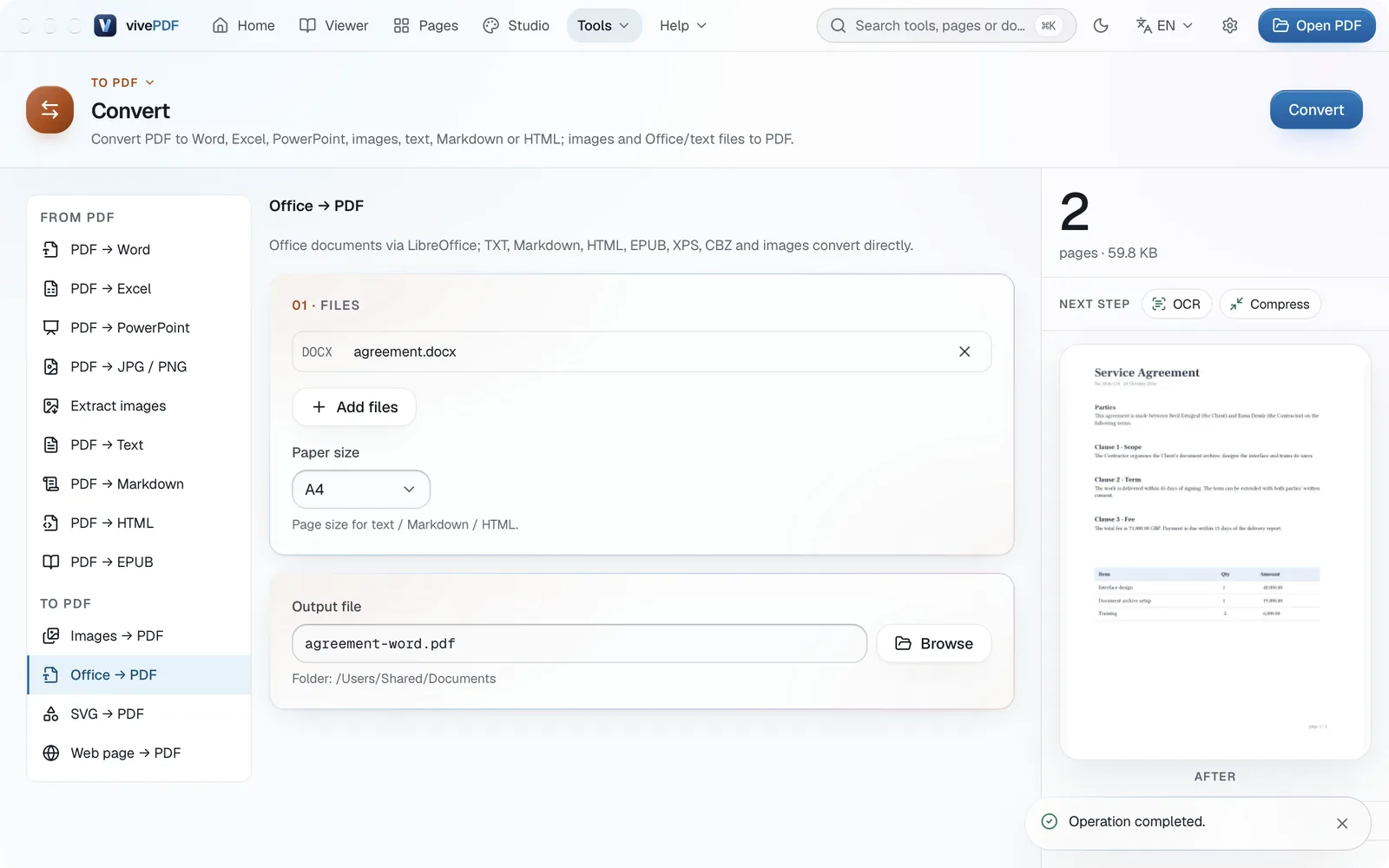
The result panel shows the page count and a preview of the first page. Under Next step you can compress the PDF or run OCR on it straight away.
LibreOffice is set up once
LibreOffice is free. If it is missing, vivePDF opens its download page from the LibreOffice is needed window, and the conversion carries on once it is installed. TXT, Markdown, HTML, EPUB, XPS and pictures convert without LibreOffice; Paper size applies to those files.
A quicker way: right-click the Office file in Finder or Explorer and choose Open With › vivePDF. It opens as a PDF copy, which you keep with Save as PDF…. More on the Convert files page.